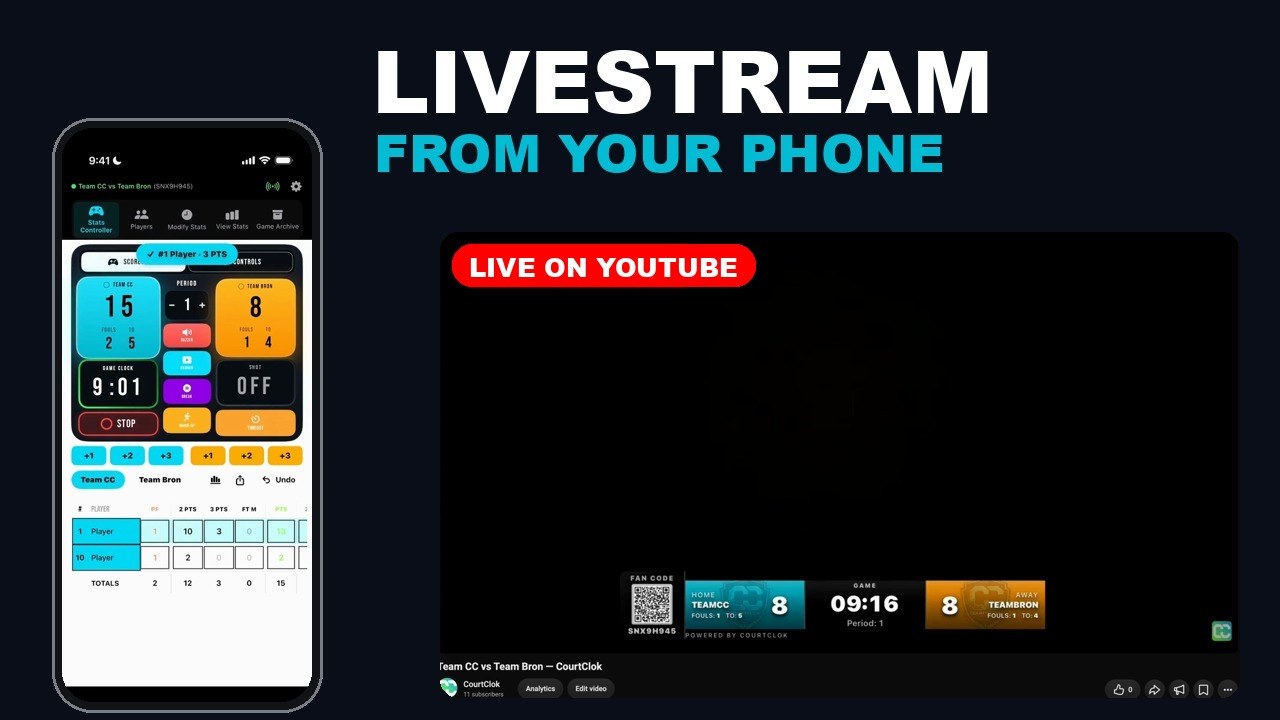
How to livestream a basketball game from your phone (with the scoreboard on the video)
By the CourtClok team · Updated October 2026 · 14 min read · 5 sources
From our tutorial video. Every screenshot below is from the real app.
The short answer
Use two phones with CourtClok. On the second phone, schedule the game, tap Start Game, choose Solo (Scoreboard + Stats) and create a channel. On the camera phone, open Live Stream Game, tap the link button and pick that channel, connect YouTube once, then tap Go Live. Every score you enter shows on the stream.
What you need
Two phones with CourtClok, both logged in to the same CourtClok account. One is the camera phone on a stand pointed at the court. The other runs the Stats Controller at the scorer's table. An iPad works for the Stats Controller too.
A YouTube channel that can live stream. Turning on live streaming the first time can take up to 24 hours, so do it a day early (see YouTube requirements).
Internet on both phones. They don't need to be on the same Wi-Fi; each one just needs a connection.
A stand or tripod for the camera phone, and a power bank or long cable. A full game of streaming uses a lot of battery.
Why two phones? The camera stays still, high up and pointed at the whole court, and you never have to touch it. Everything else (score, clock, fouls, timeouts, player stats and even Go Live) you do from the phone in your hand.
Tip: Prefer to watch first? The full video walkthrough shows both phones side by side, synced.
Step 1: Open Live Stream on the camera phone
🎥 On the camera phone
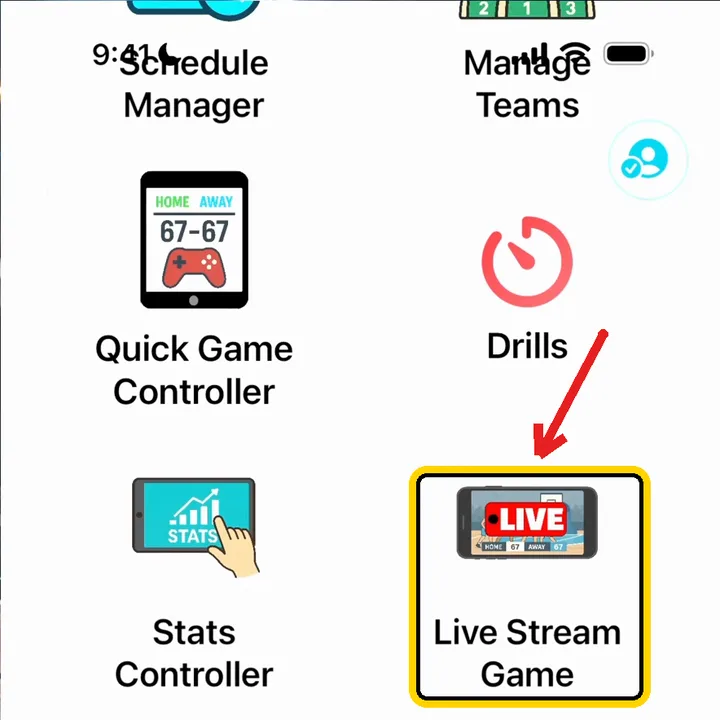
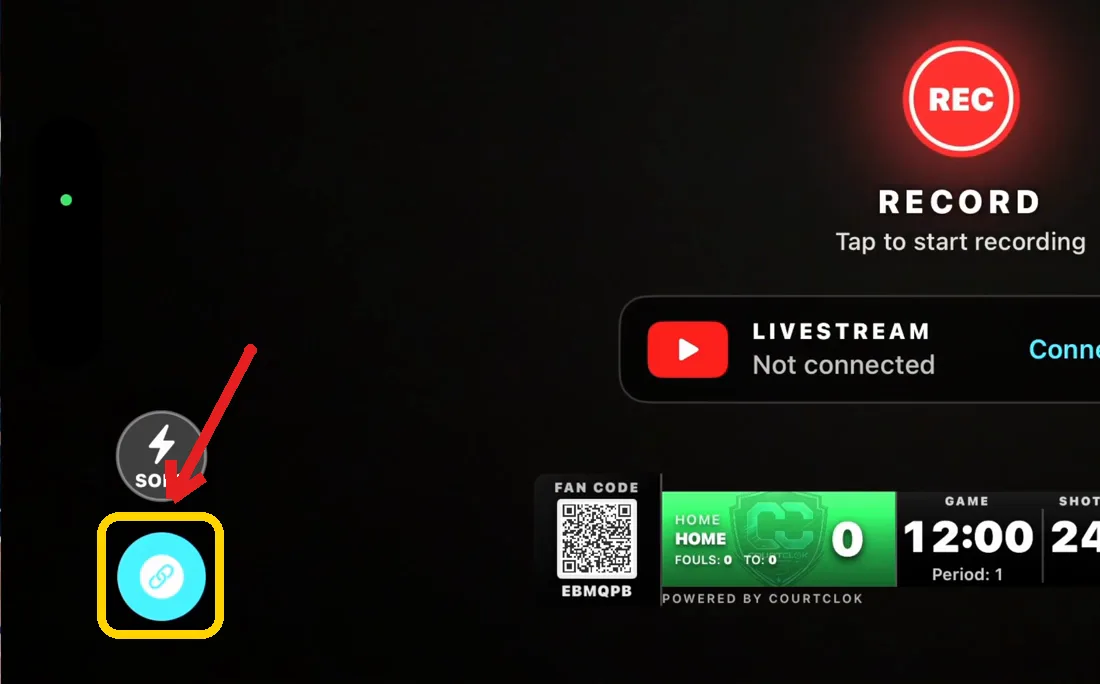
Open CourtClok and tap Live Stream Game.
Tap Live Stream Game
Turn the phone sideways. The camera opens in landscape. Point it at the court and leave it there.
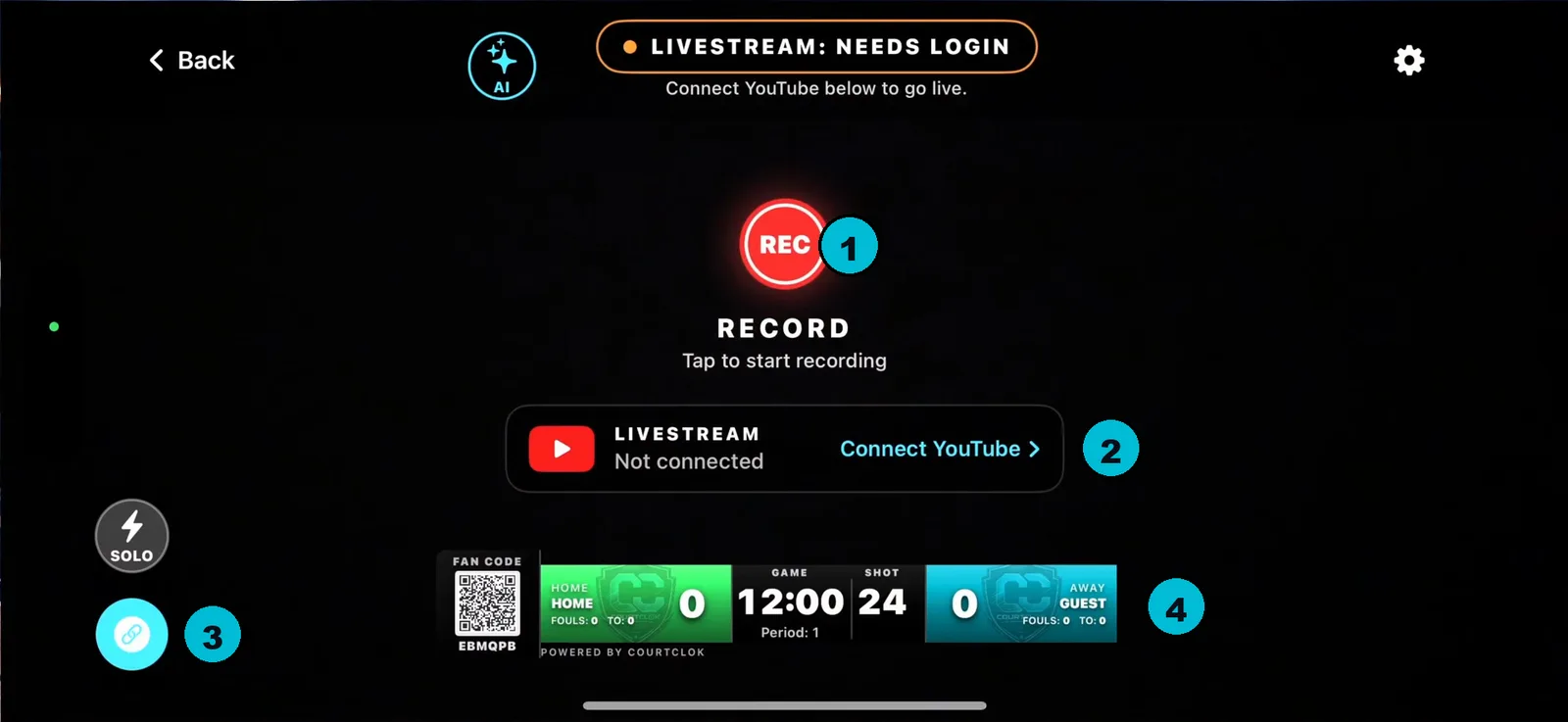
You should see: the live stream camera screen:
The camera screen: (1) Record, (2) Livestream / Connect YouTube, (3) the link button, (4) the scoreboard overlay
The scoreboard at the bottom (4) is what viewers see on the stream. Right now it shows HOME and GUEST at 12:00. Once you link the camera to your game in Step 5, it switches to your teams and your clock.
Step 2: Schedule the game on the Stats Controller phone
📱 On the Stats Controller phone
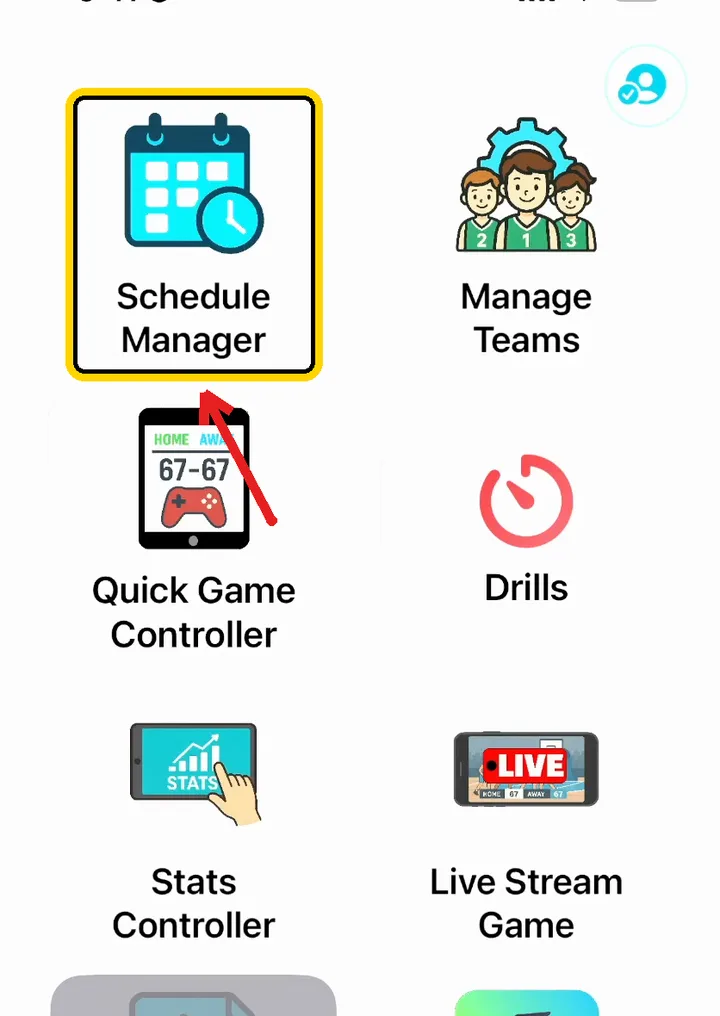
Open CourtClok and tap Schedule Manager.
Tap Schedule Manager
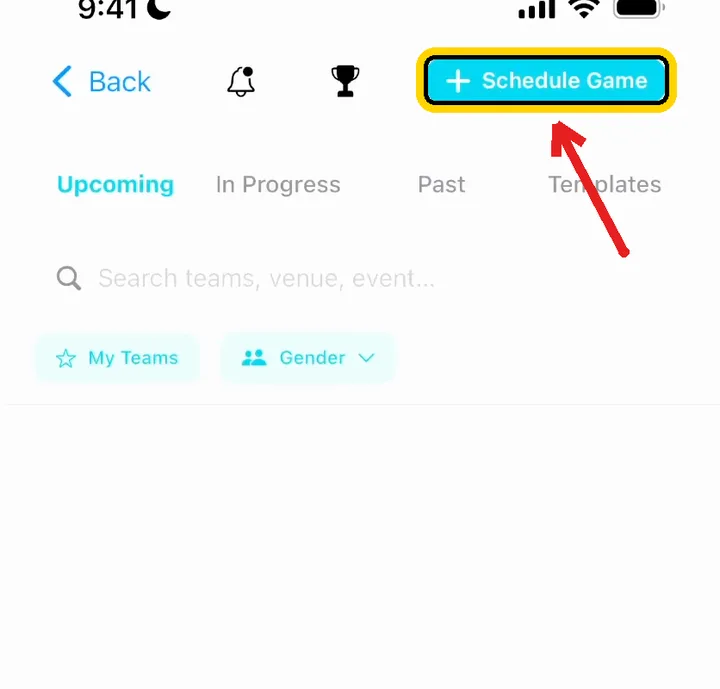
Tap + Schedule Game at the top right.
Tap + Schedule Game
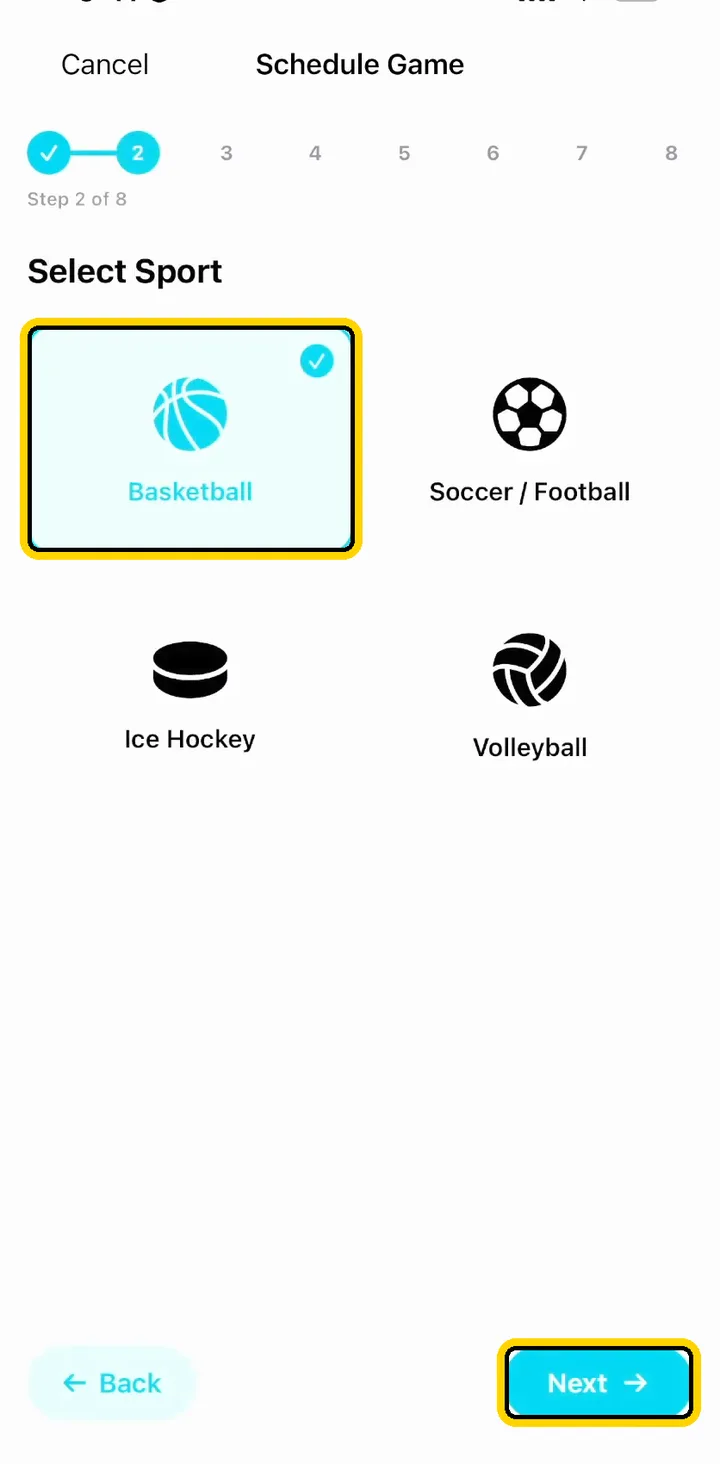
If you have saved templates, pick one or skip it. Then choose Basketball and tap Next.
Select Sport: Basketball, then Next
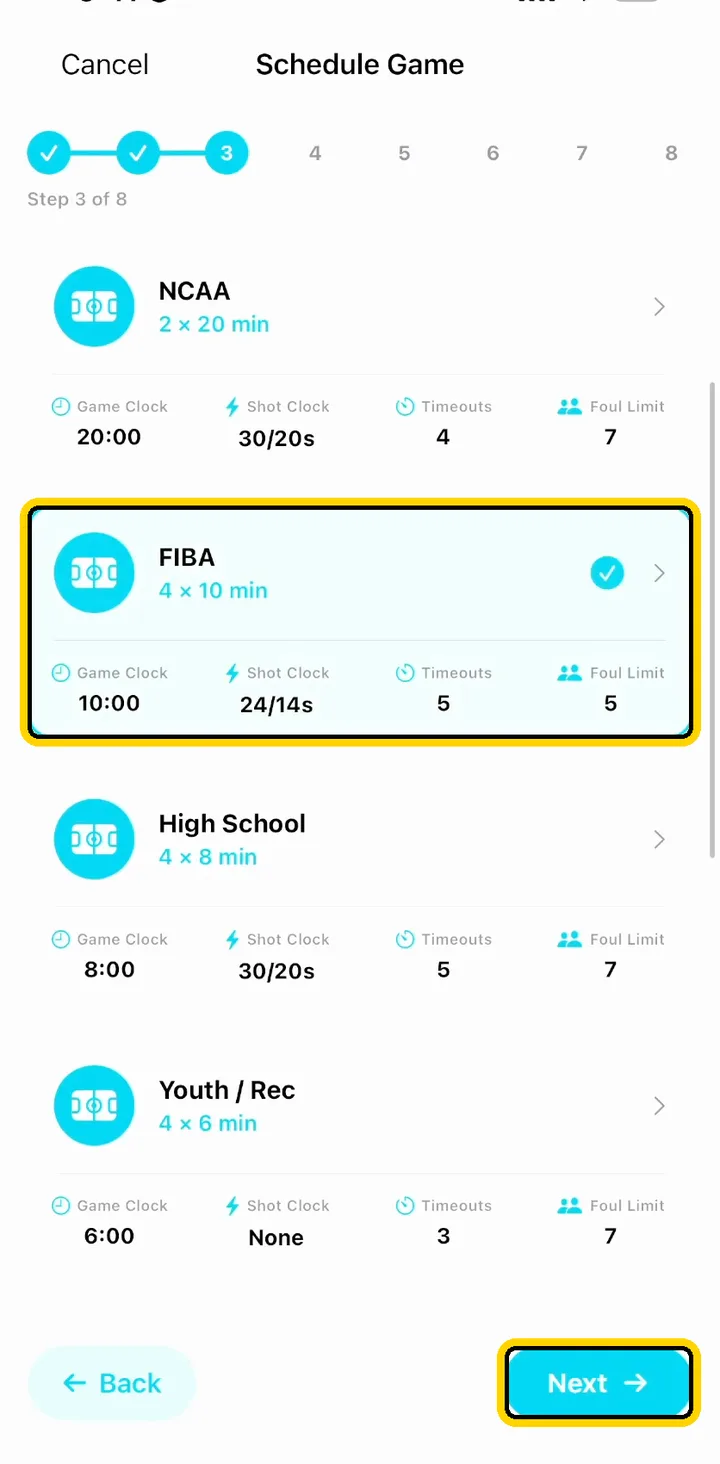
Pick the rules your league plays: NCAA (2 × 20 min), FIBA (4 × 10 min), High School (4 × 8 min) or Youth / Rec (4 × 6 min). Each preset sets the game clock, shot clock, timeouts and foul limit. Tap Next.
Choose a rules preset, then Next
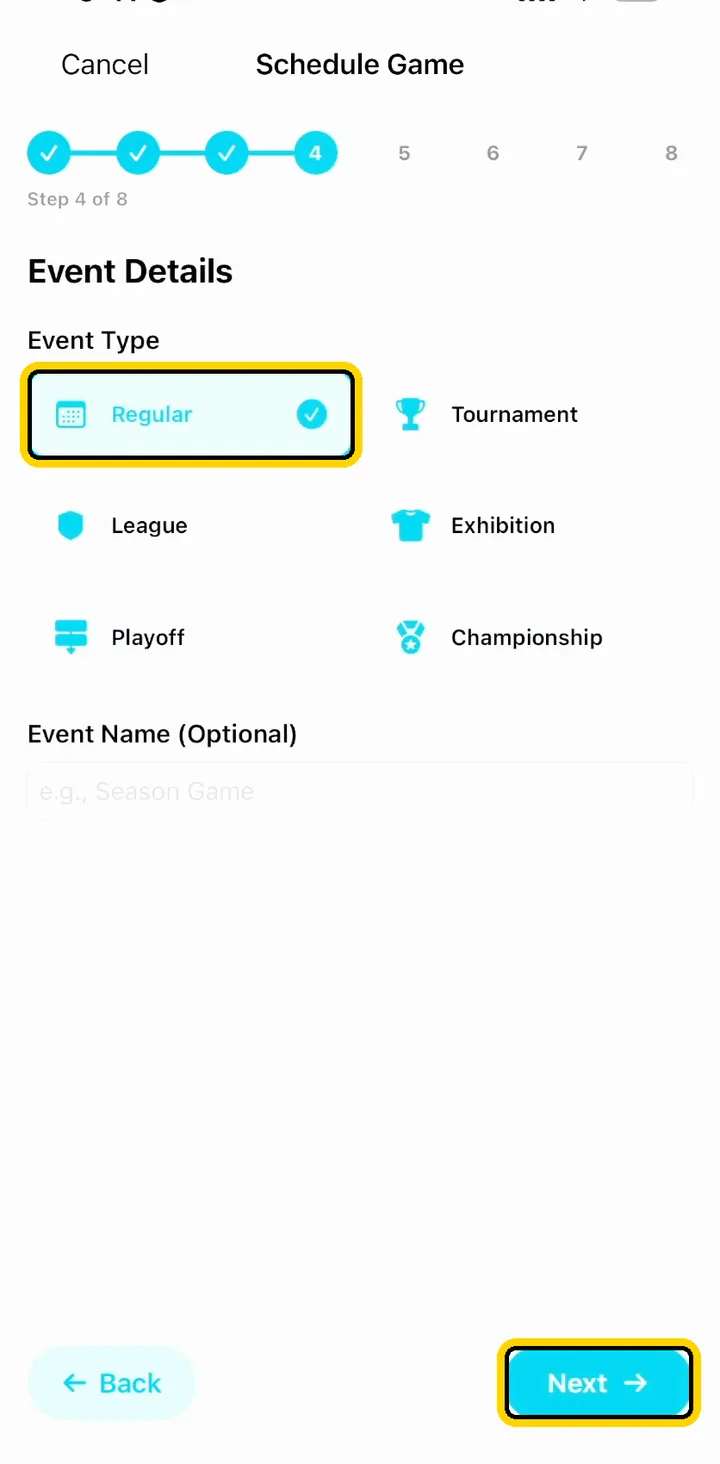
Choose the event type (Regular, League, Playoff, Tournament, Exhibition or Championship). The event name is optional. Tap Next.
Event type: Regular, then Next
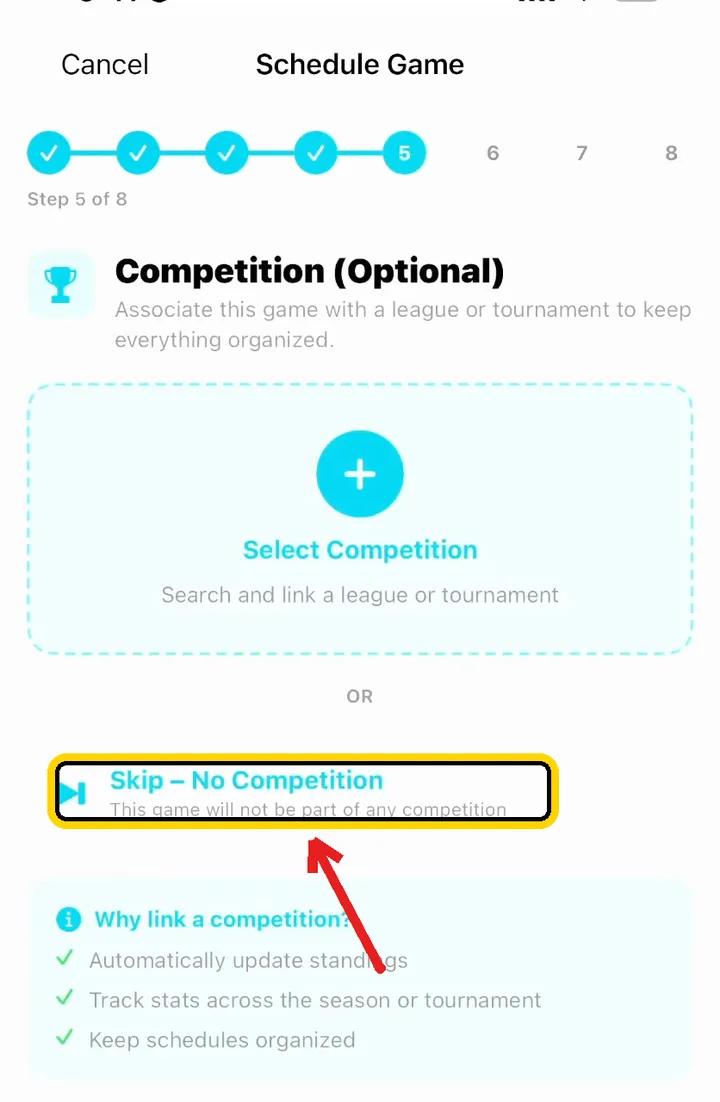
Competition is optional. If the game isn't part of a league or tournament you've set up, tap Skip – No Competition.
No league? Tap Skip – No Competition
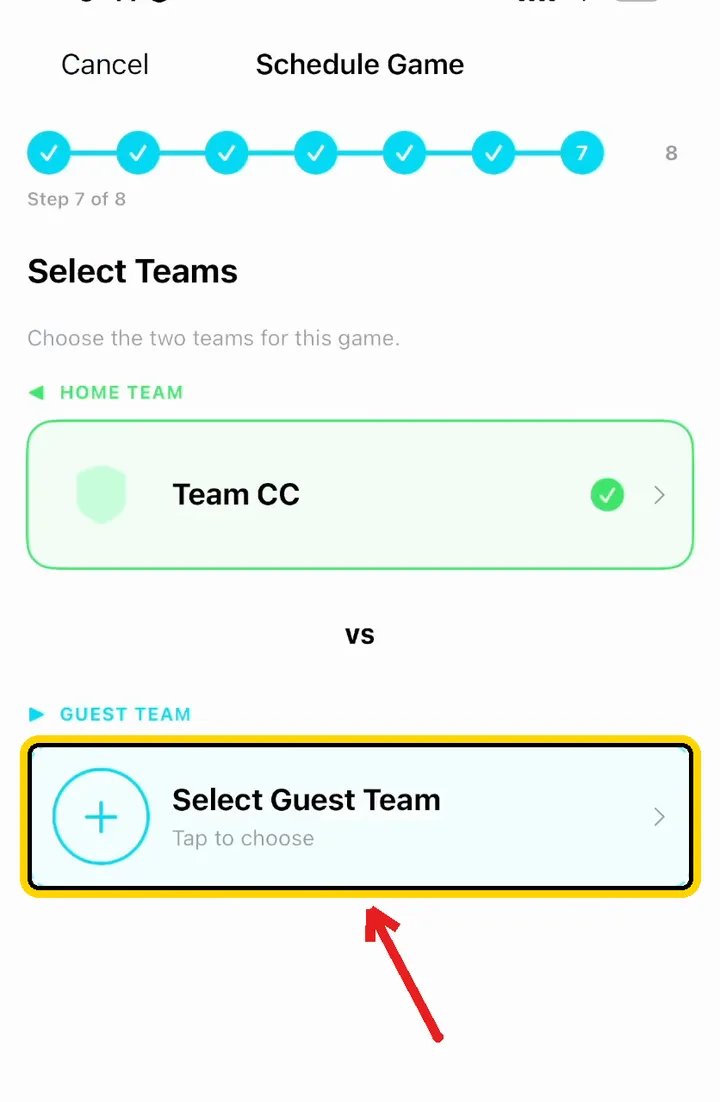
Tap Select Home Team and pick your team, then Select Guest Team and pick the opponent. Tap Next.
Pick the home team, then the guest team
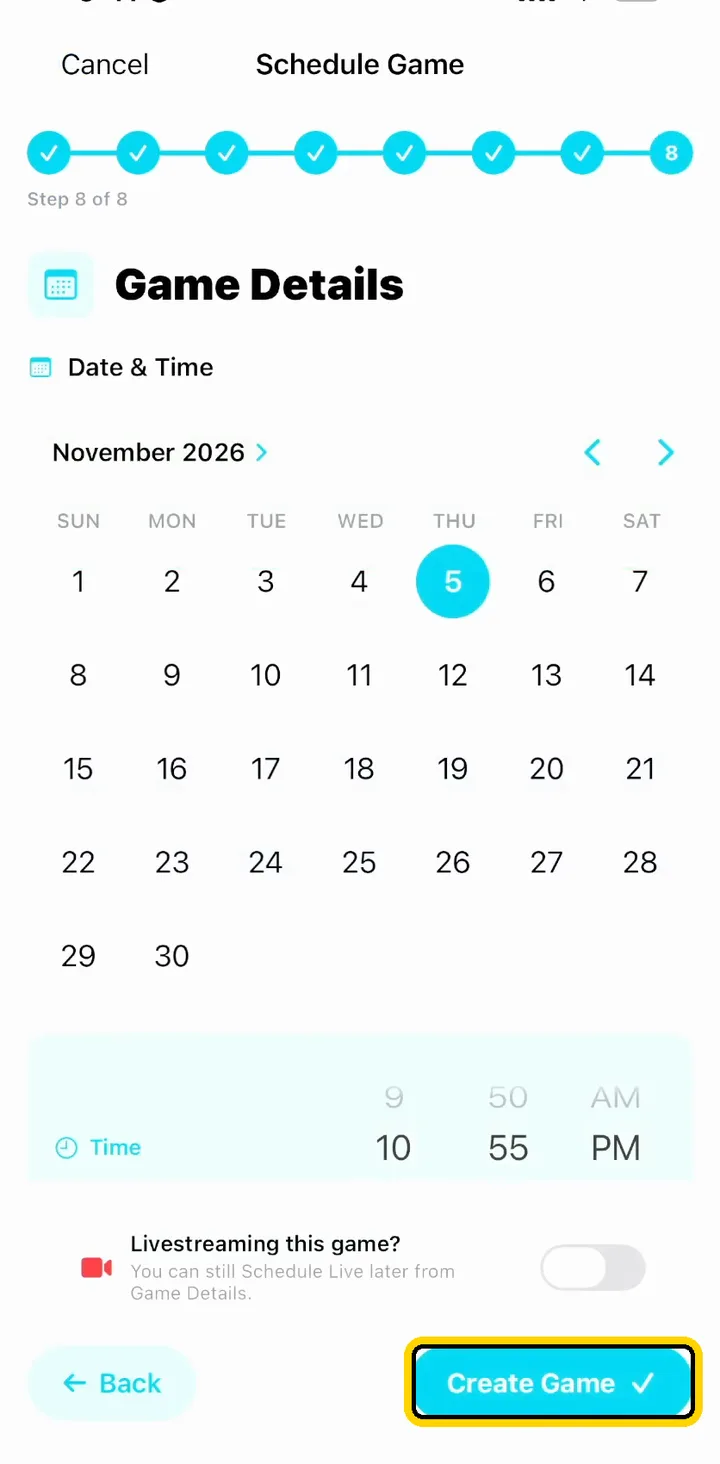
Set the date and time and tap Create Game.
Set the date and time, then Create Game
You should see: your game in the Schedule Manager list, with its own game code.
Step 3: Start the game in Solo · Scoreboard + Stats
📱 On the Stats Controller phone
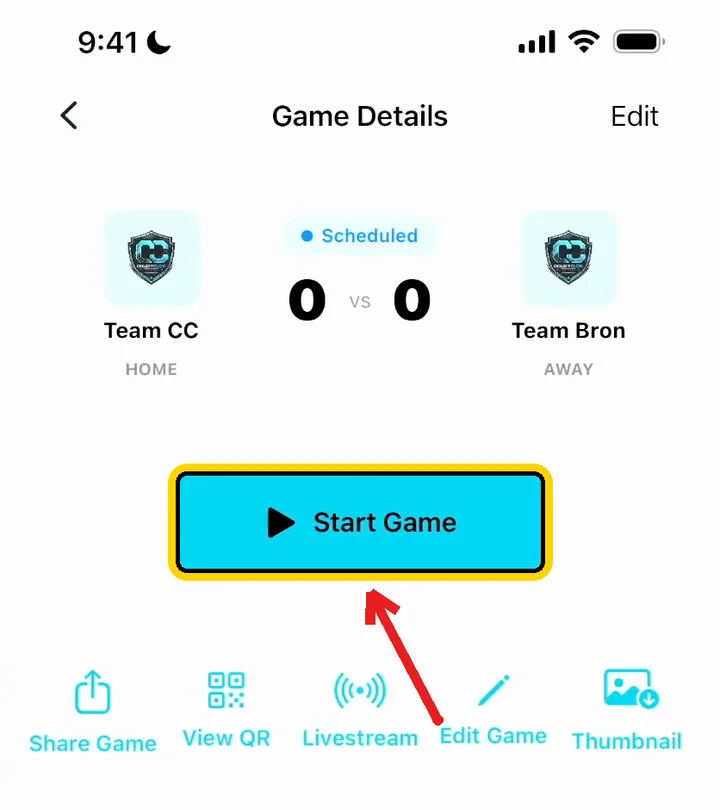
Tap the game in the list, then tap Start Game.
Open the game and tap Start Game
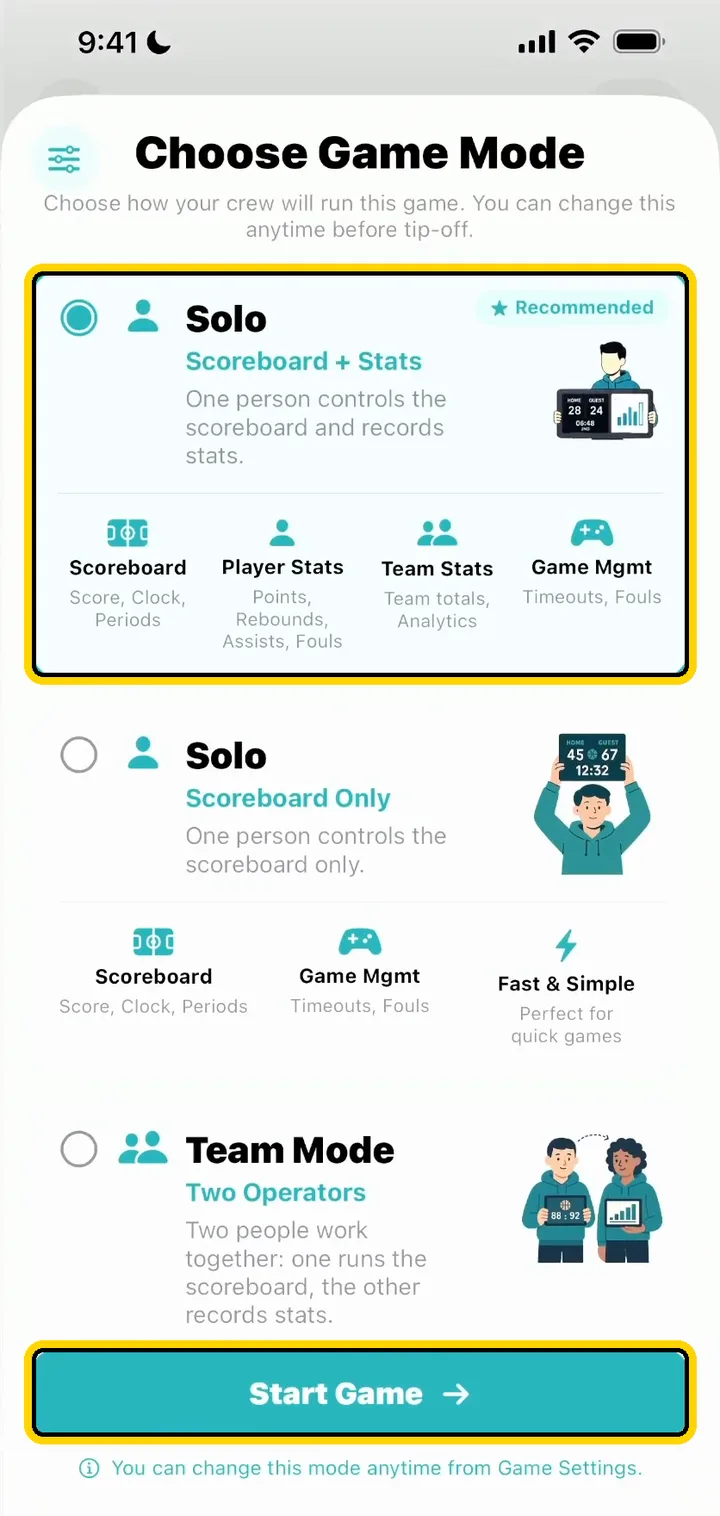
On Choose Game Mode, pick Solo · Scoreboard + Stats (one person runs the scoreboard and records player stats), then tap Start Game.
Solo · Scoreboard + Stats, then Start Game
Step 4: Create a channel
📱 On the Stats Controller phone
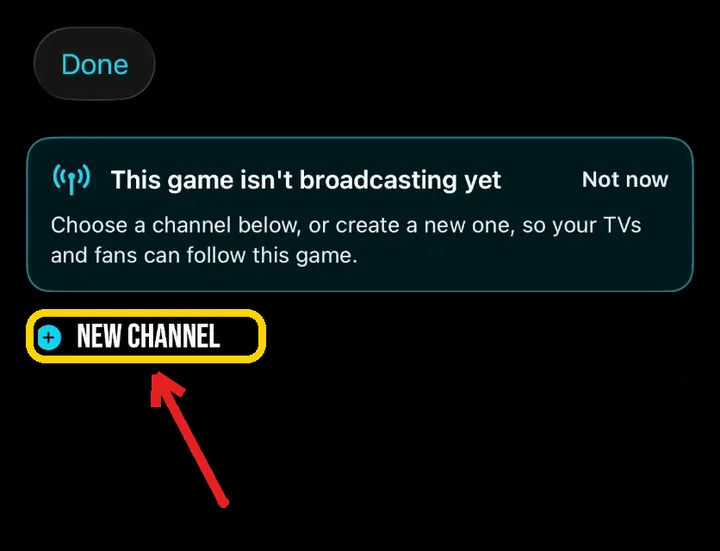
The Stats Controller opens with This game isn't broadcasting yet. A channel is how your camera phone (and any TV scoreboard) finds this game.
Tap New Channel.
Tap New Channel
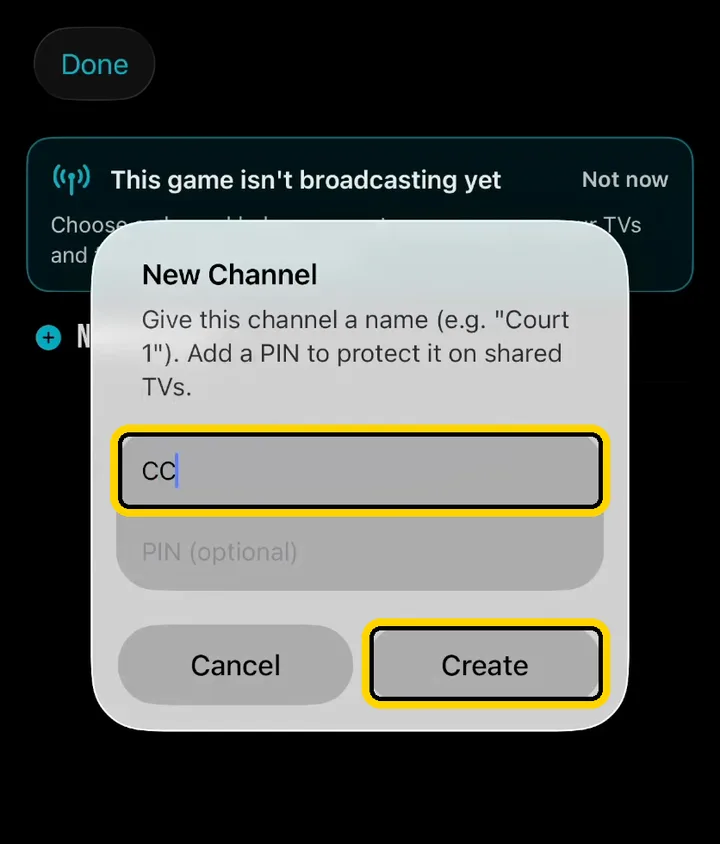
Give the channel a name, such as your team or court (we used CC). A PIN is optional. Tap Create.
Name the channel, then Create
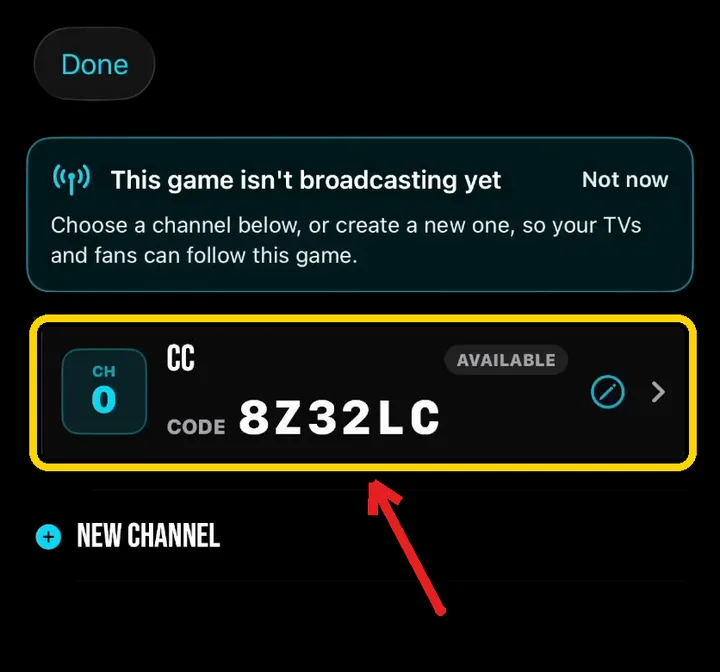
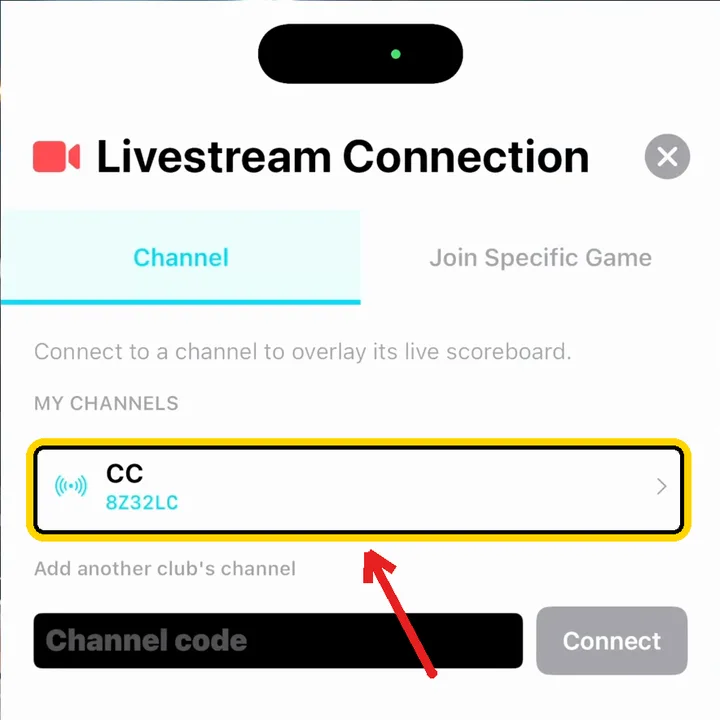
Your channel appears with its code (ours is 8Z32LC). Leave this screen open for now; you'll tap it in Step 5.
Your new channel and its code
Tip: You only create a channel once. Next game, just pick the same channel.
Step 5: Link the camera phone to the channel
🎥 On the camera phone
Tap the round link button at the bottom left of the camera screen.
Tap the link button
Livestream Connection opens on the Channel tab. Under My Channels, tap the channel you just made. Any phone logged in to the same CourtClok account sees your channels here.
Tap your channel under My Channels
📱 Back on the Stats Controller phone
Tap the same channel to select it. The Stats Controller opens with your game.
Step 6: Check your game is on the camera
🎥 On the camera phone
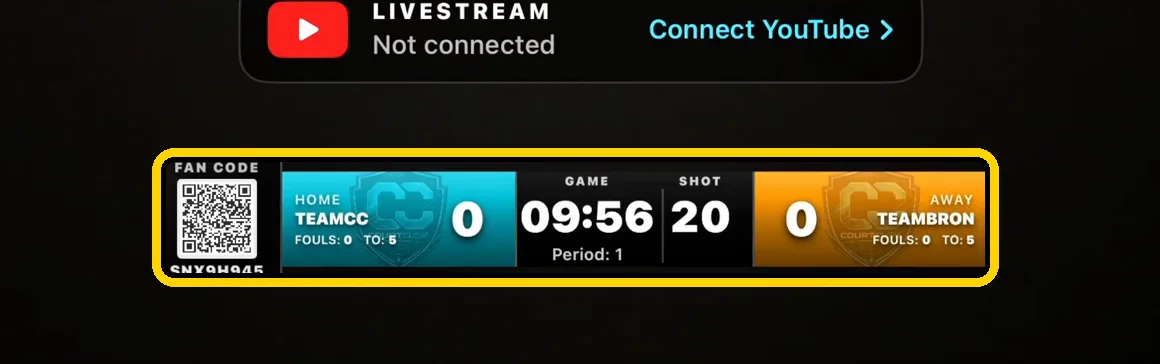
Look at the scoreboard on the camera phone. Within a few seconds it switches from HOME / GUEST to your teams, your game clock and your fan code.
The overlay now shows your game
You should see: your team names and the same clock as the Stats Controller. If it still says HOME / GUEST, see If something isn't working.
Step 7: Add your players
📱 On the Stats Controller phone
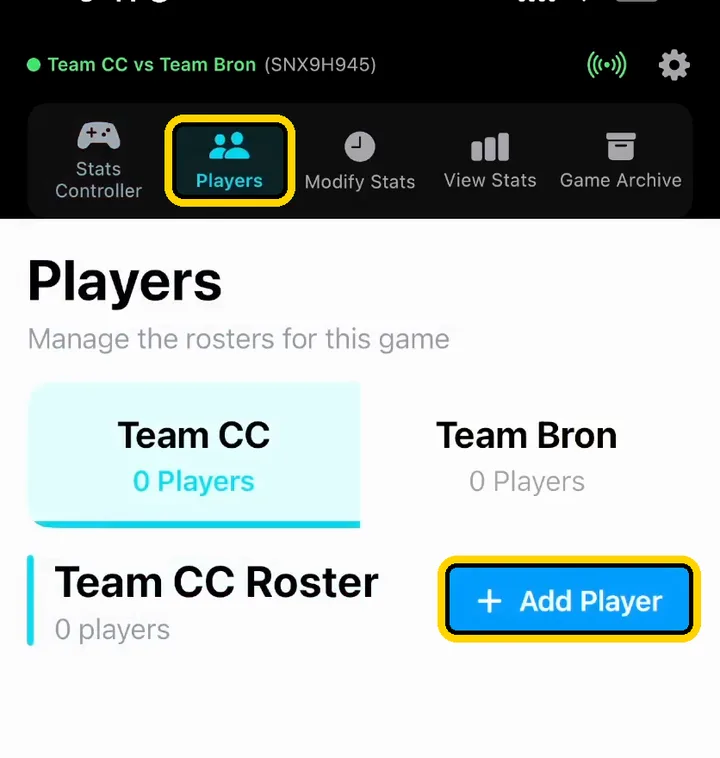
Tap the Players tab, pick a team, and tap + Add Player.
Players tab, then + Add Player
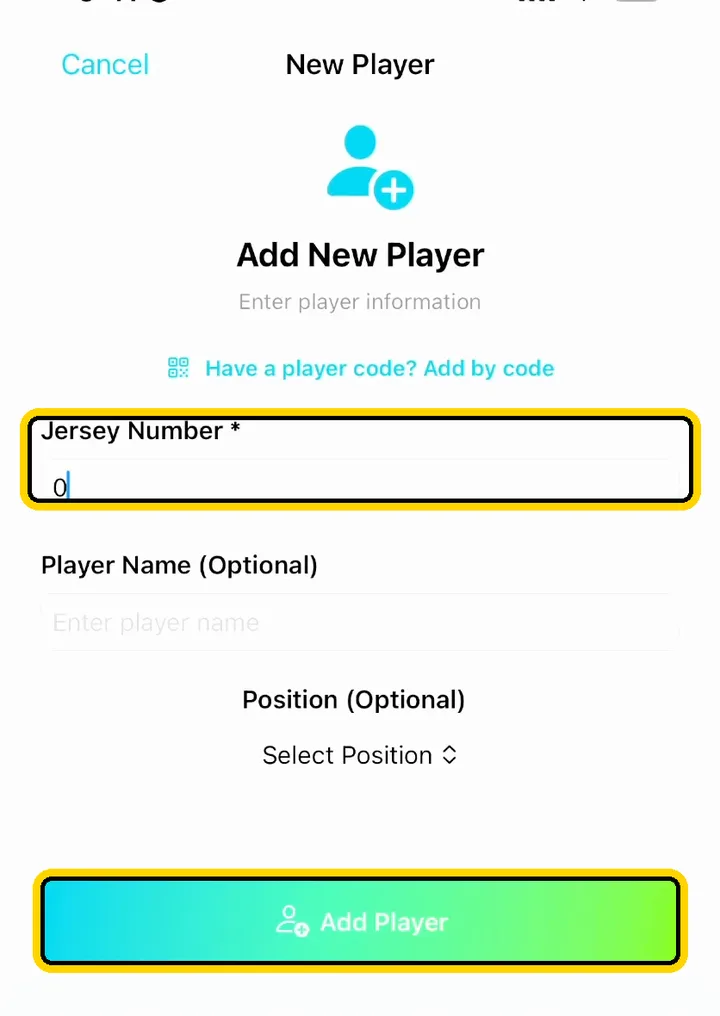
Type the jersey number. The name and position are optional. Tap Add Player, and repeat for each player on both teams.
Jersey number, then Add Player
Step 8: Run the game from the Stats Controller
📱 On the Stats Controller phone
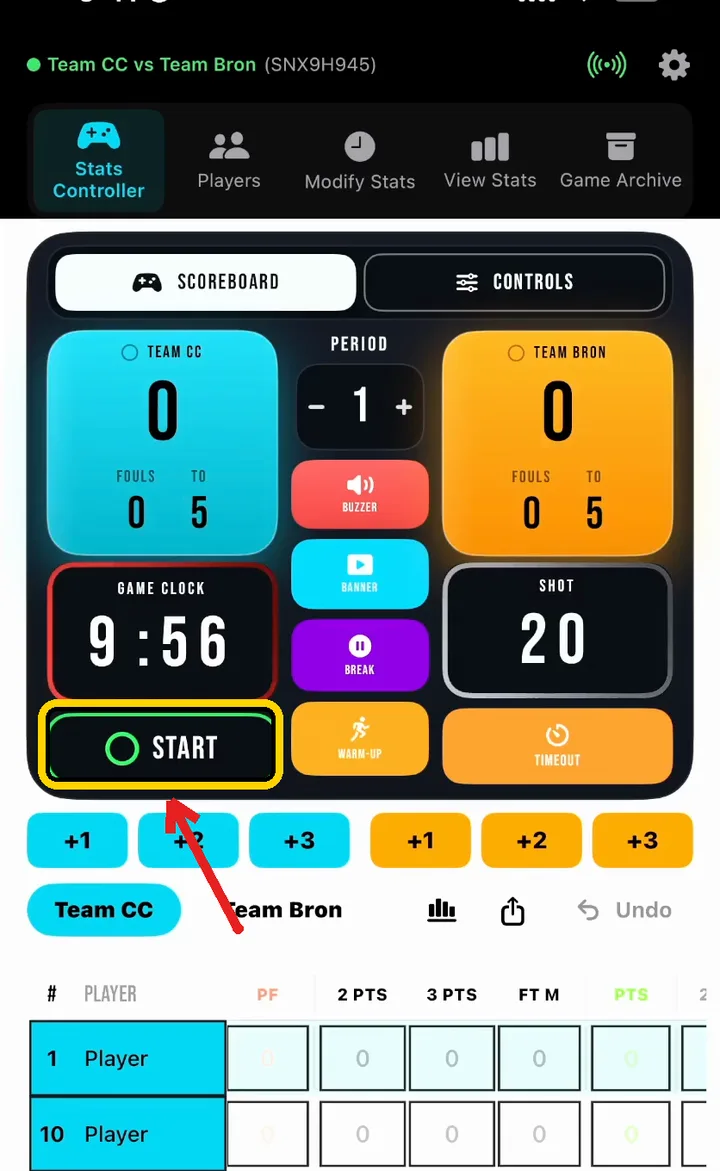
Tap START to run the game clock. Tap it again to stop it.
START runs the game clock
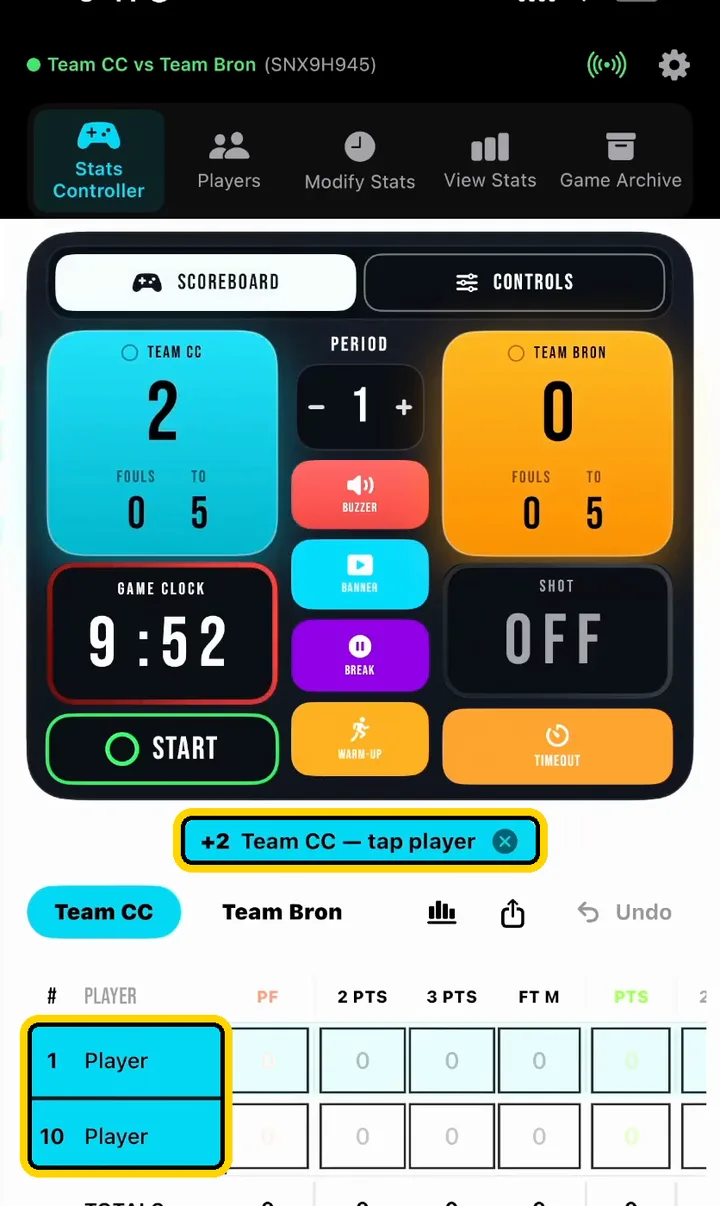
When a team scores, tap +1, +2 or +3 under their colour. A banner asks you to tap player: tap who scored.
+2, then tap the player who scored
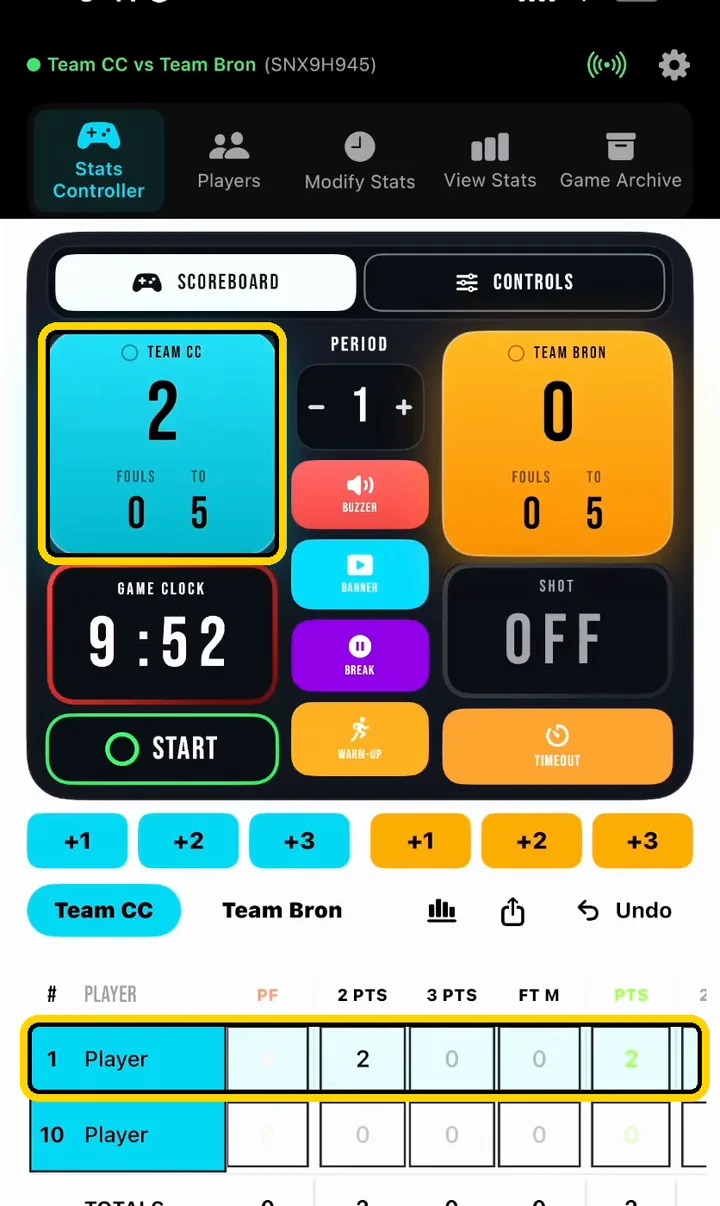
You should see: the team score goes up and the player's points are added to the stat table.
Score and player stats update together
🎥 On the camera phone
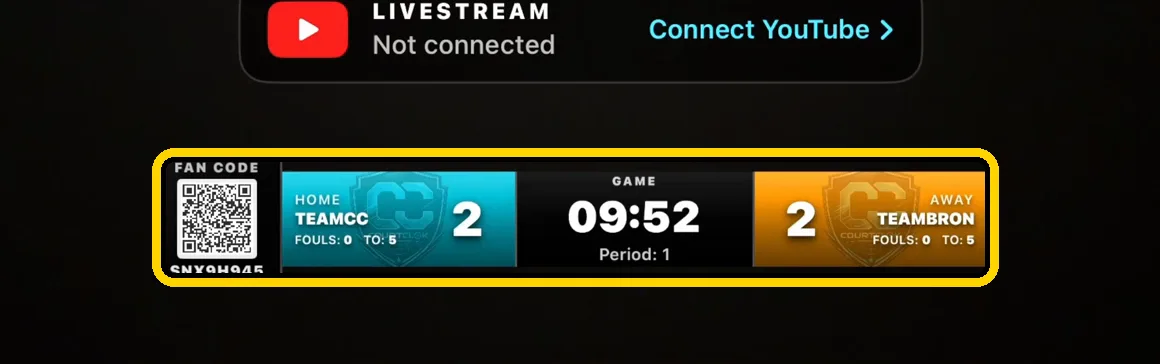
Every point, foul, timeout and clock change shows up on the stream's scoreboard straight away. You never touch the camera.
The stream's scoreboard follows every tap
Step 9: Timeouts show your sponsors
📱 On the Stats Controller phone
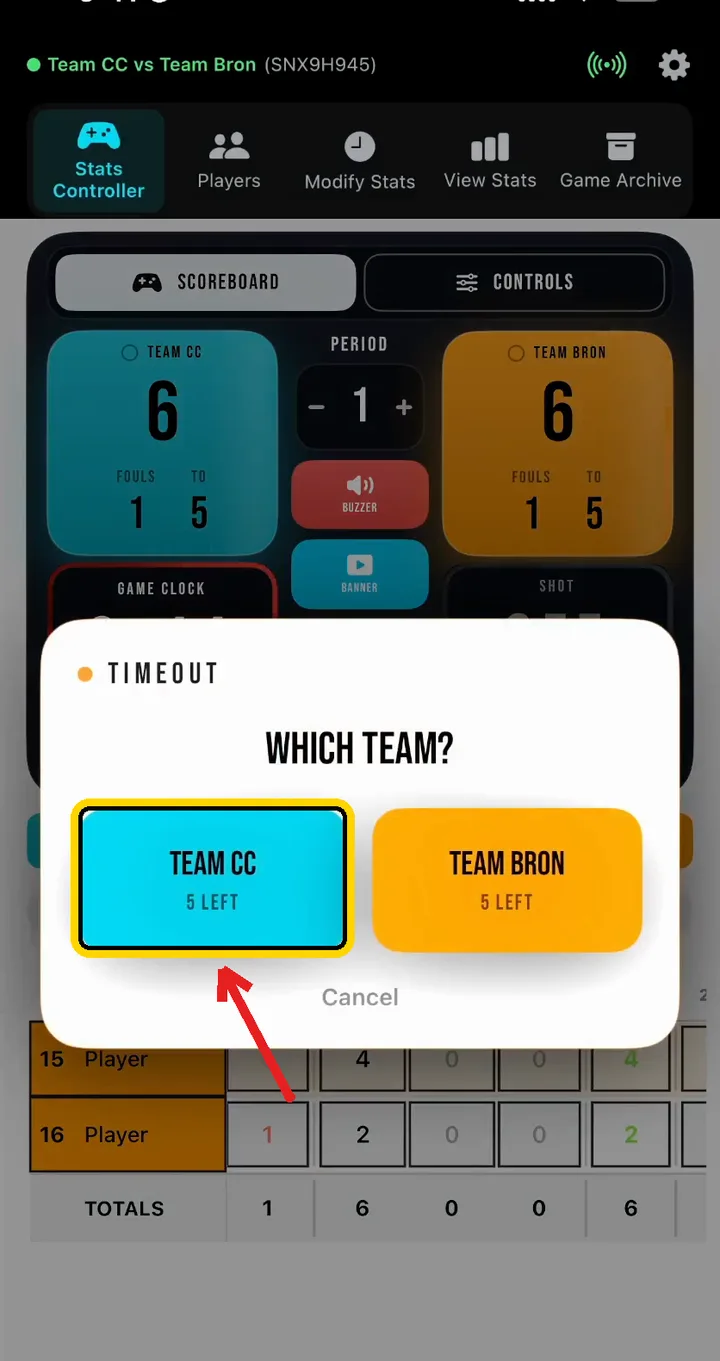
Tap Timeout, then the team that called it.
Timeout, then which team
🎥 On the camera phone
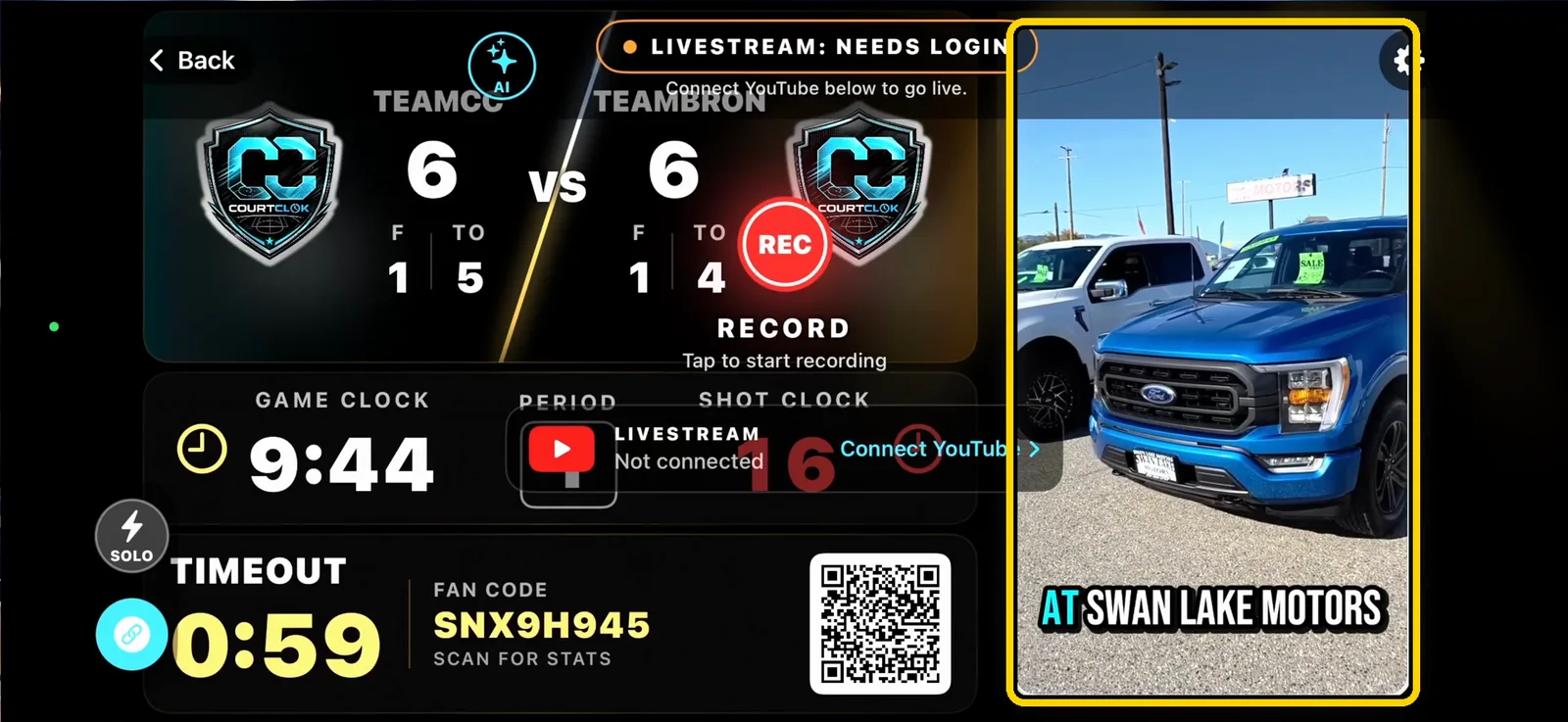
The stream shows a full timeout screen: both teams, the score, fouls, the game clock, a timeout countdown, the fan code QR, and your sponsor's ad. Sponsor ads are set up in Ads Manager on CourtClok Pro.
Timeout screen with a sponsor ad on the stream
Step 10: Connect YouTube (one time)
🎥 On the camera phone
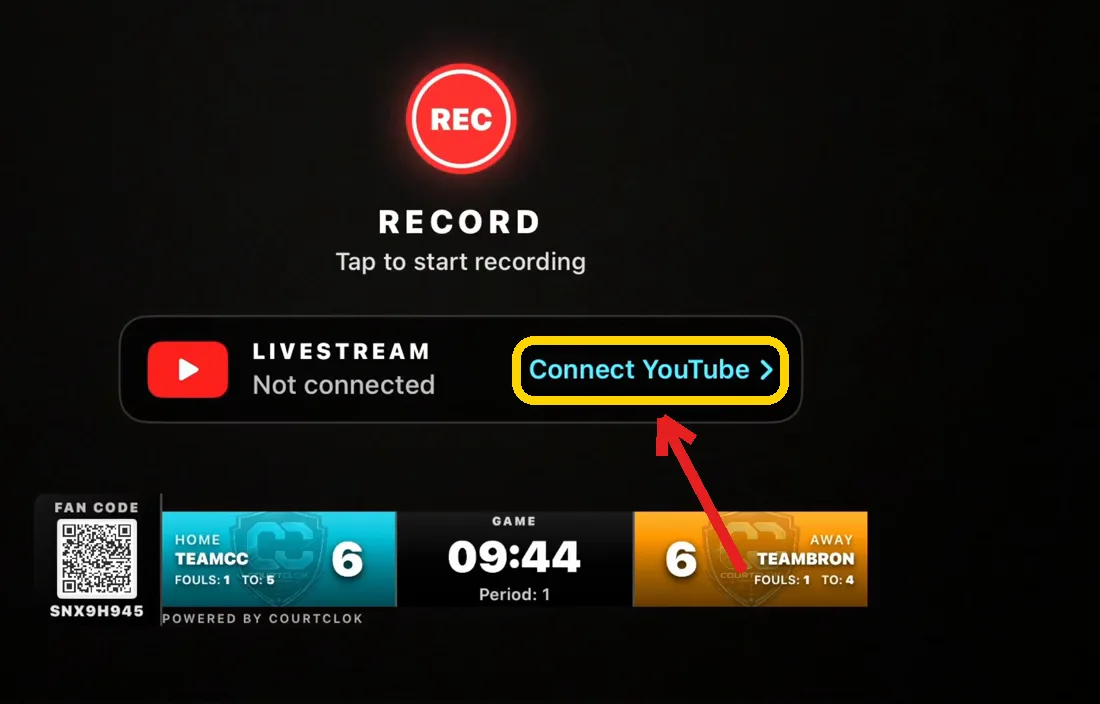
Tap Connect YouTube next to Livestream.
Tap Connect YouTube
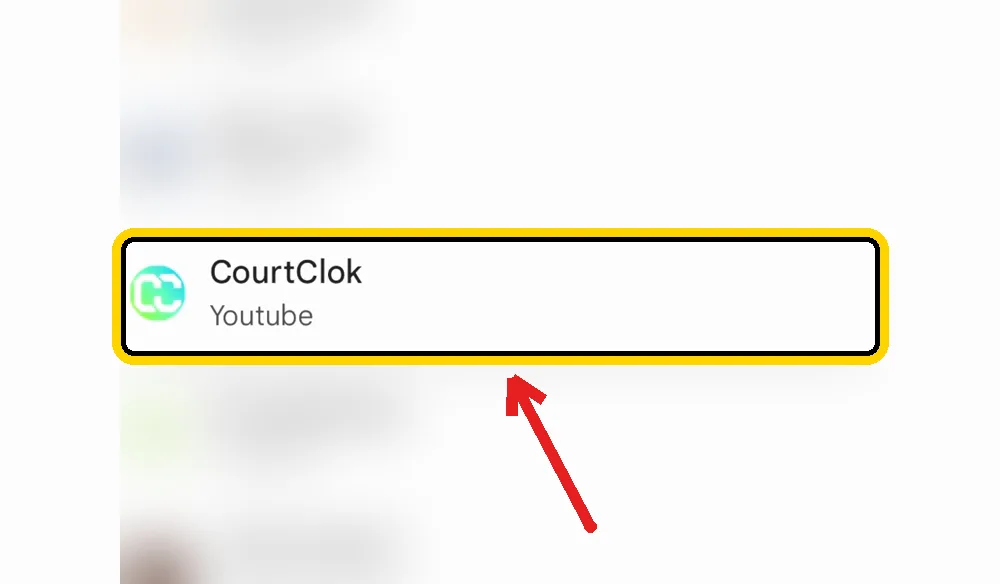
Sign in with Google and choose the account. If your account has more than one channel, pick the YouTube channel you want to stream to.
Pick the channel to stream to (our other channels are blurred)
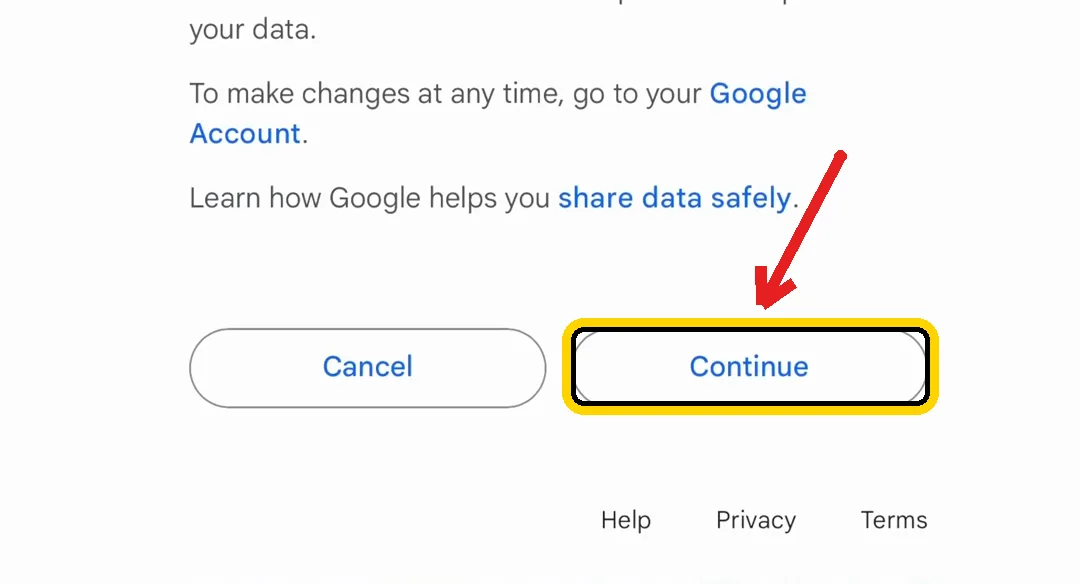
Tap Continue to give CourtClok permission to start broadcasts on that channel.
Tap Continue
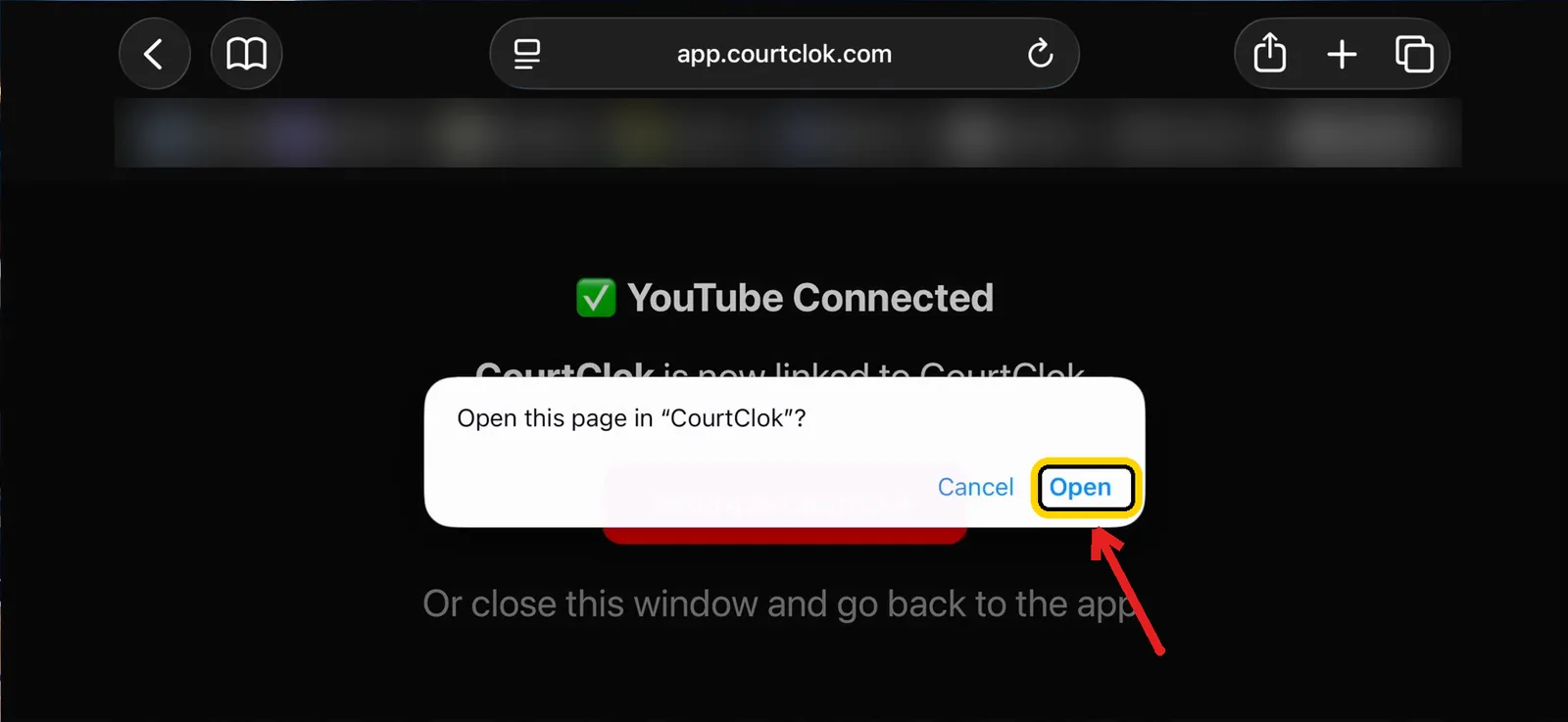
You'll see YouTube Connected. Tap Open to go back to CourtClok.
YouTube Connected: tap Open
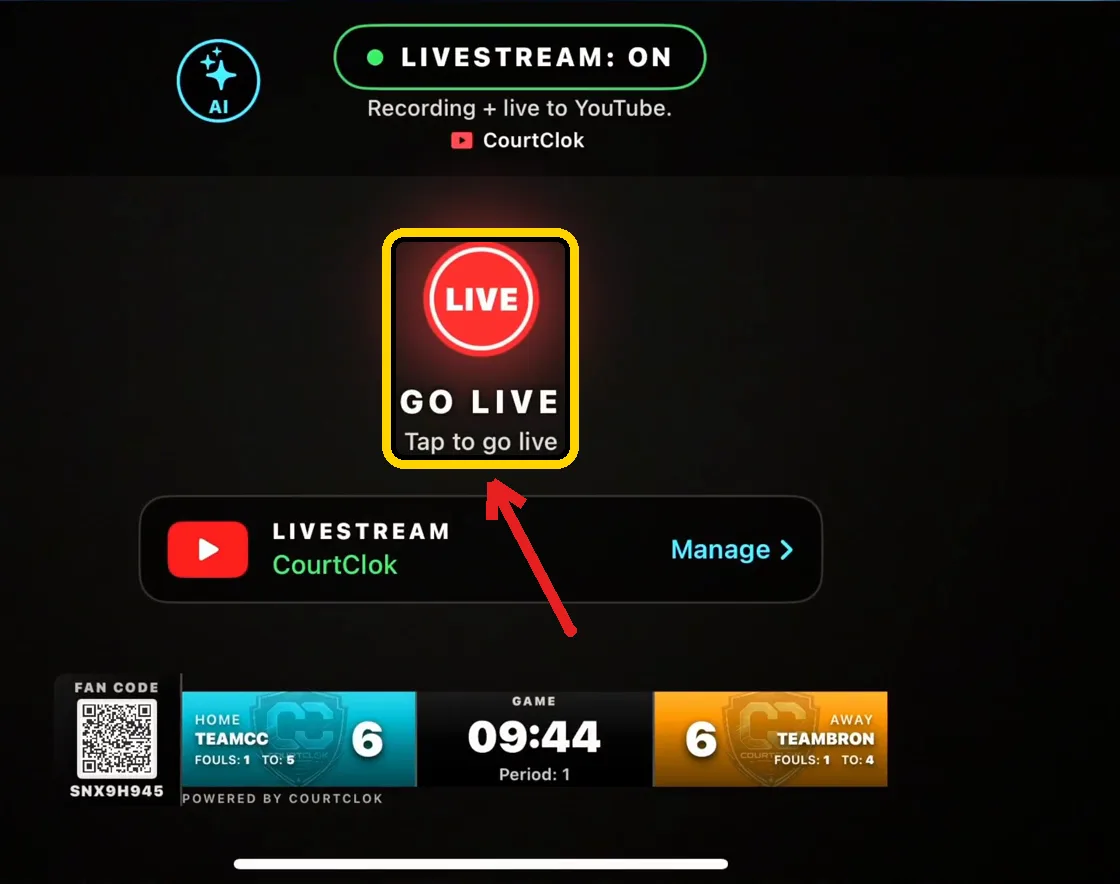
You should see: LIVESTREAM: ON at the top and your channel name under Livestream. You won't need to do this step again on this phone.
Step 11: Go live
🎥 On the camera phone
Tap GO LIVE.
Tap GO LIVE
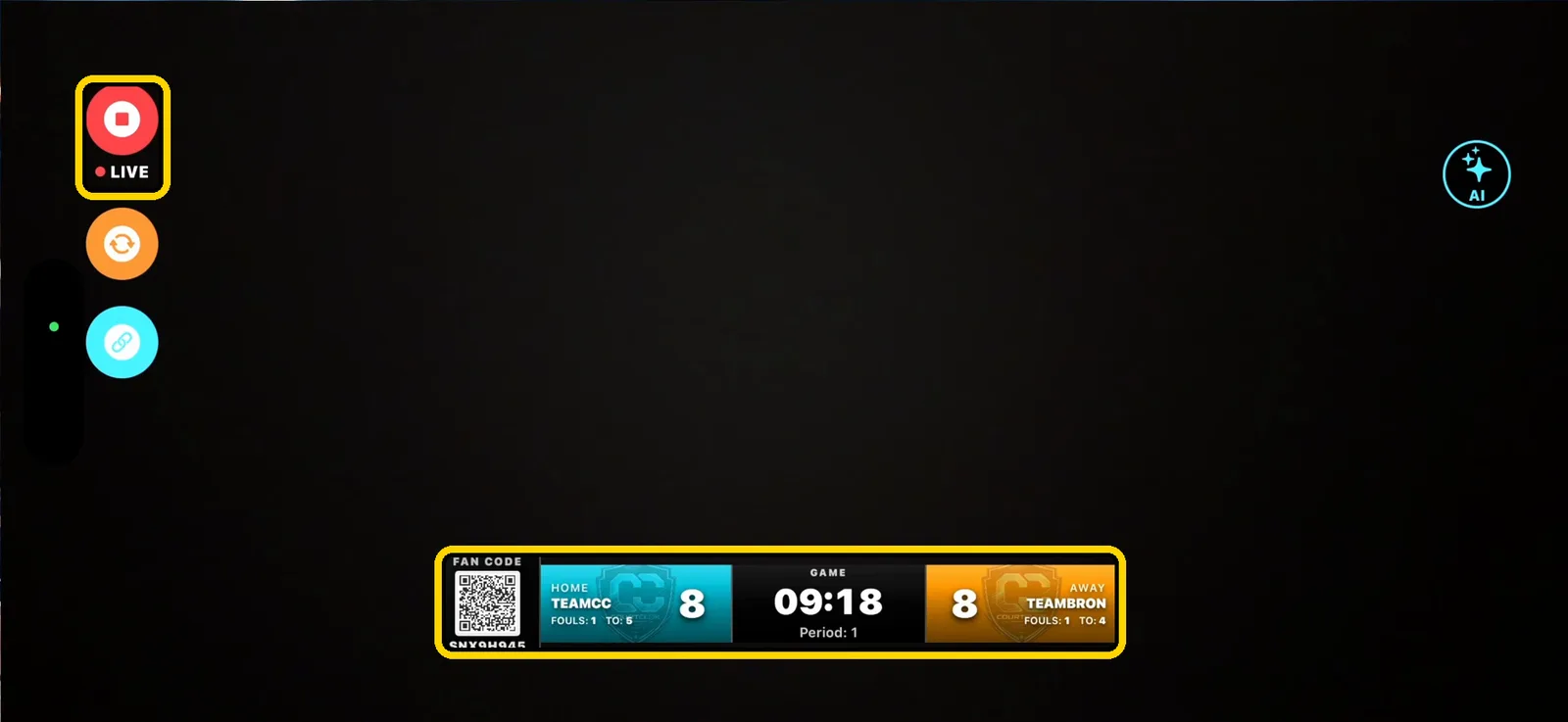
Wait a few seconds while it connects to YouTube. The buttons move to the side and a red LIVE shows at the top left. You're streaming, and recording on the phone at the same time.
Live: the red LIVE button stops the stream
Tip: Do a two-minute test stream before game day. It checks your YouTube channel, your internet and your camera angle in one go.
Step 12: Keep running it from the table
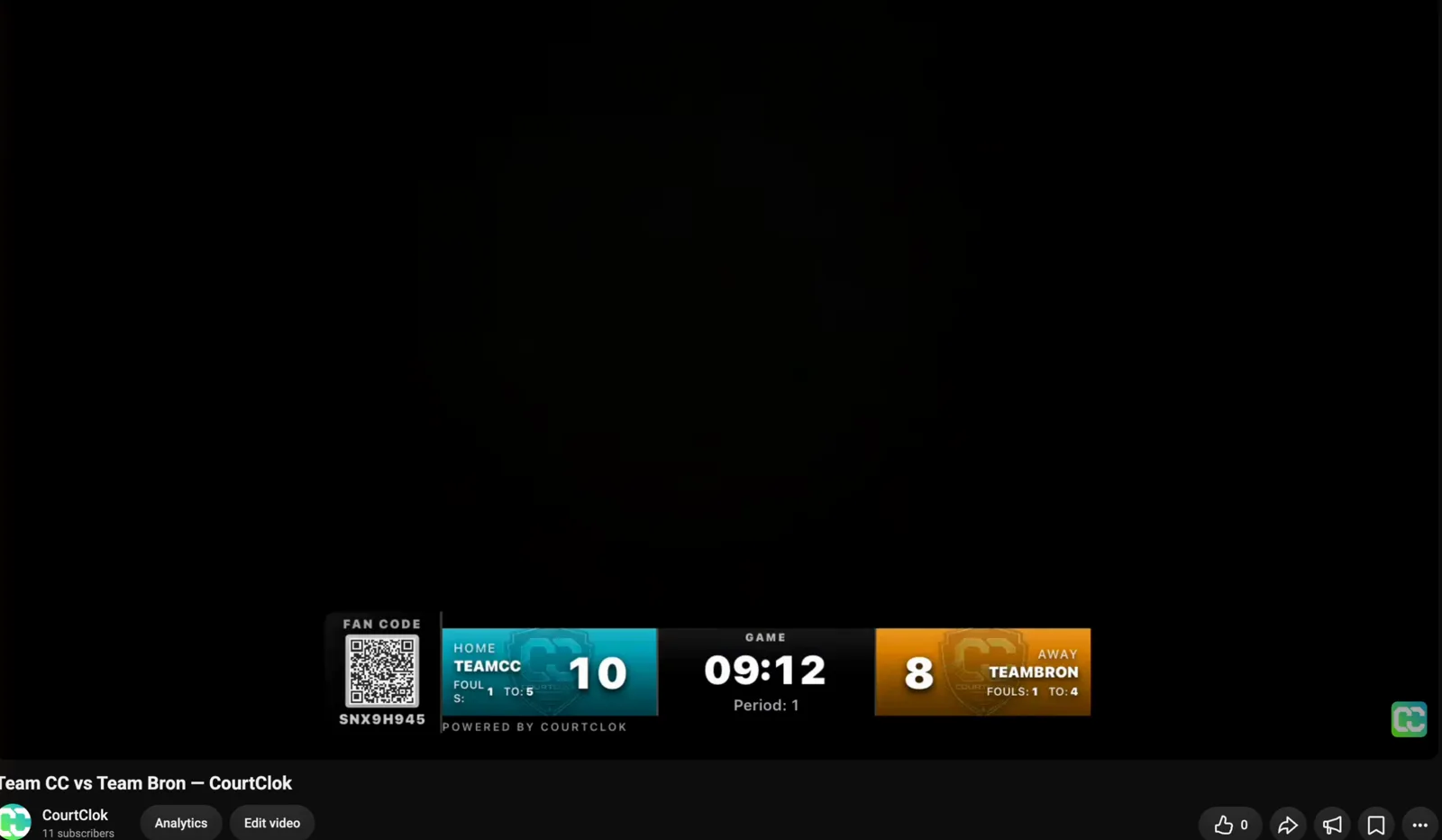
From here you only use the Stats Controller. Score, foul, call timeouts and run the clock as normal, and the stream's scoreboard follows. Here's what family at home see on YouTube:
The stream on YouTube, with the live score, clock and fan code
When the game ends, tap the red stop button on the camera phone. The stream is saved to your YouTube channel so parents can rewatch it.
YouTube requirements before your first stream
Verify your channel and have no live streaming restrictions in the last 90 days (YouTube Help).
Turn on live streaming a day early. YouTube says enabling a live stream for the first time may take up to 24 hours (YouTube Help).
Pick public, unlisted or private. Unlisted means only people with the link can watch, which many youth teams prefer (YouTube Help).
Keep it under 12 hours. Streams under 12 hours are saved to your channel automatically; longer ones may not be (YouTube Help). A basketball game is well inside that.
Going live from the YouTube app itself needs at least 50 subscribers (YouTube Help). CourtClok streams to your channel as a streaming app instead, and YouTube's streaming-app requirements above don't list a subscriber minimum.
Game-day checklist
Both phones logged in to the same CourtClok account, with the app updated.
Camera phone on power and on the stand, sideways, before warm-ups.
Game scheduled and channel picked on both phones (Steps 2 to 5).
Check the overlay on the camera phone shows your teams before you go live.
Players added so every basket goes to the right jersey.
Share the link with parents once you're live, or let them scan the fan code QR on the stream.
If something isn't working
Problem
Fix
The overlay still says HOME / GUEST
The camera isn't linked to your game yet. Tap the link button on the camera phone and pick your channel (Step 5), and make sure the Stats Controller selected the same channel.
My channel isn't listed on the camera phone
Both phones must be logged in to the same CourtClok account. Or type the channel code under Add another club's channel.
The score on the stream doesn't change
Check both phones have internet, and that the code under the channel matches on both.
Google says "Google hasn't verified this app"
Expected while CourtClok finishes Google's verification. Tap Advanced, then Go to CourtClok (unsafe), then Continue (details).
Connect YouTube fails
Make sure live streaming is turned on for your channel in YouTube (it can take up to 24 hours the first time), then try again.
It's stuck on Waiting to connect to stream server
Give it a few seconds. If it doesn't go live, check the camera phone's internet, then tap Go Live again.
It's asking me to watch an ad
Your free livestreams are used. Watch one short ad to unlock streaming for three hours, or upgrade to Pro to skip ads.
Watch the video walkthrough
Prefer to watch? Coach On walks through the whole setup with both phones on screen.
Both phones side by side, synced: every tap on the Stats Controller and what it does on the camera phone.
Covers scheduling, Solo · Scoreboard + Stats, creating and linking a channel, players, scoring, timeouts, Connect YouTube and Go Live.
Ends on the finished stream playing on YouTube.
Questions about livestreaming with CourtClok
Is CourtClok free for livestreaming?
Yes. Your first 3 livestreams are free. After that, one short ad unlocks streaming for three hours, which covers a full game. CourtClok Pro removes the ads.
Do I need two phones?
It's the setup we recommend: one phone on a stand as the camera, and one at the table running the Stats Controller, so you never touch the camera during the game. The Stats Controller also works on an iPad.
How does the camera phone know which game to show?
Through the channel. You create a channel on the Stats Controller, then tap the link button on the camera phone and pick the same channel. Any phone logged in to the same CourtClok account sees your channels.
Do the phones need to be on the same Wi-Fi?
No. Each phone just needs an internet connection.
Can I stream without keeping player stats?
Yes. Choose Solo · Scoreboard Only in Step 3 and the overlay still shows the score, clock and fouls.
Is the stream recorded?
Yes. The camera phone records while it streams, and YouTube saves streams under 12 hours to your channel automatically.
Can parents follow the stats?
Yes. The fan code QR on the stream opens the live box score on their phones.
Ready to stream your next game? Download CourtClok on two phones, link them once, and stream every game with the score on the video. Free to use with ads, or go Pro to skip them.