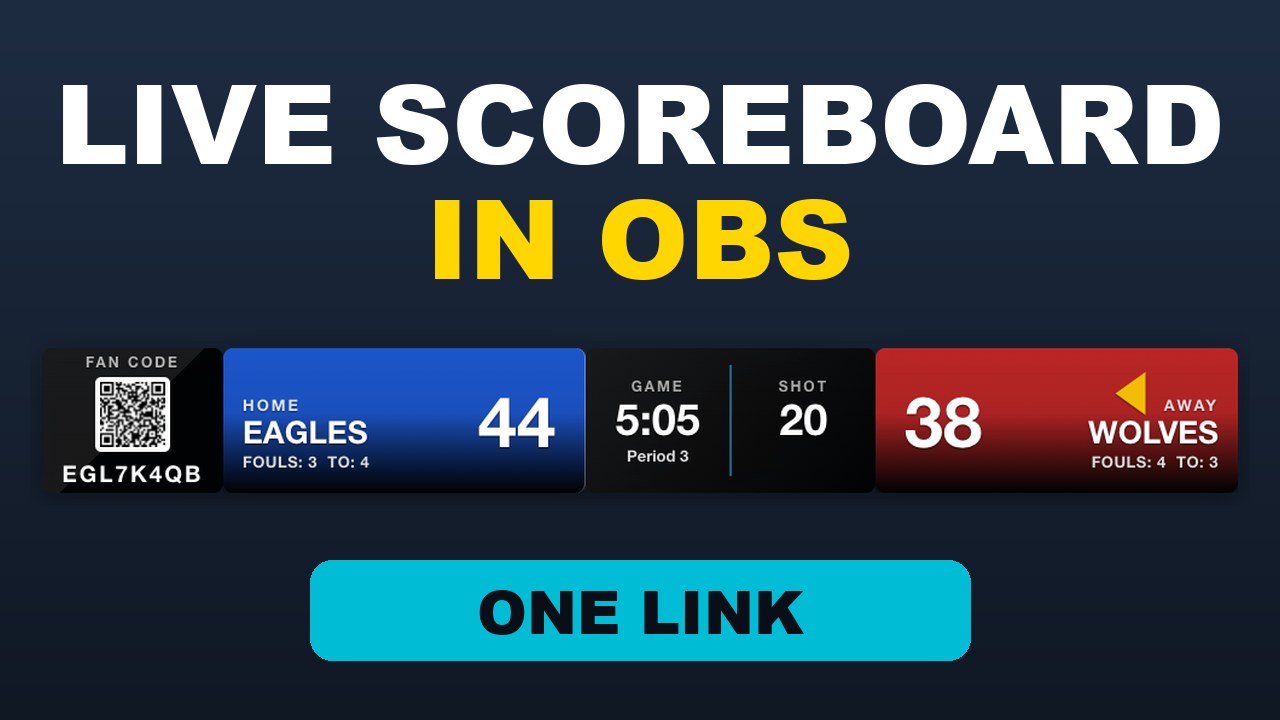
How to add a live scoreboard to OBS (one link, updates live)
By the CourtClok team · Updated October 2026 · 6 min read · 3 sources
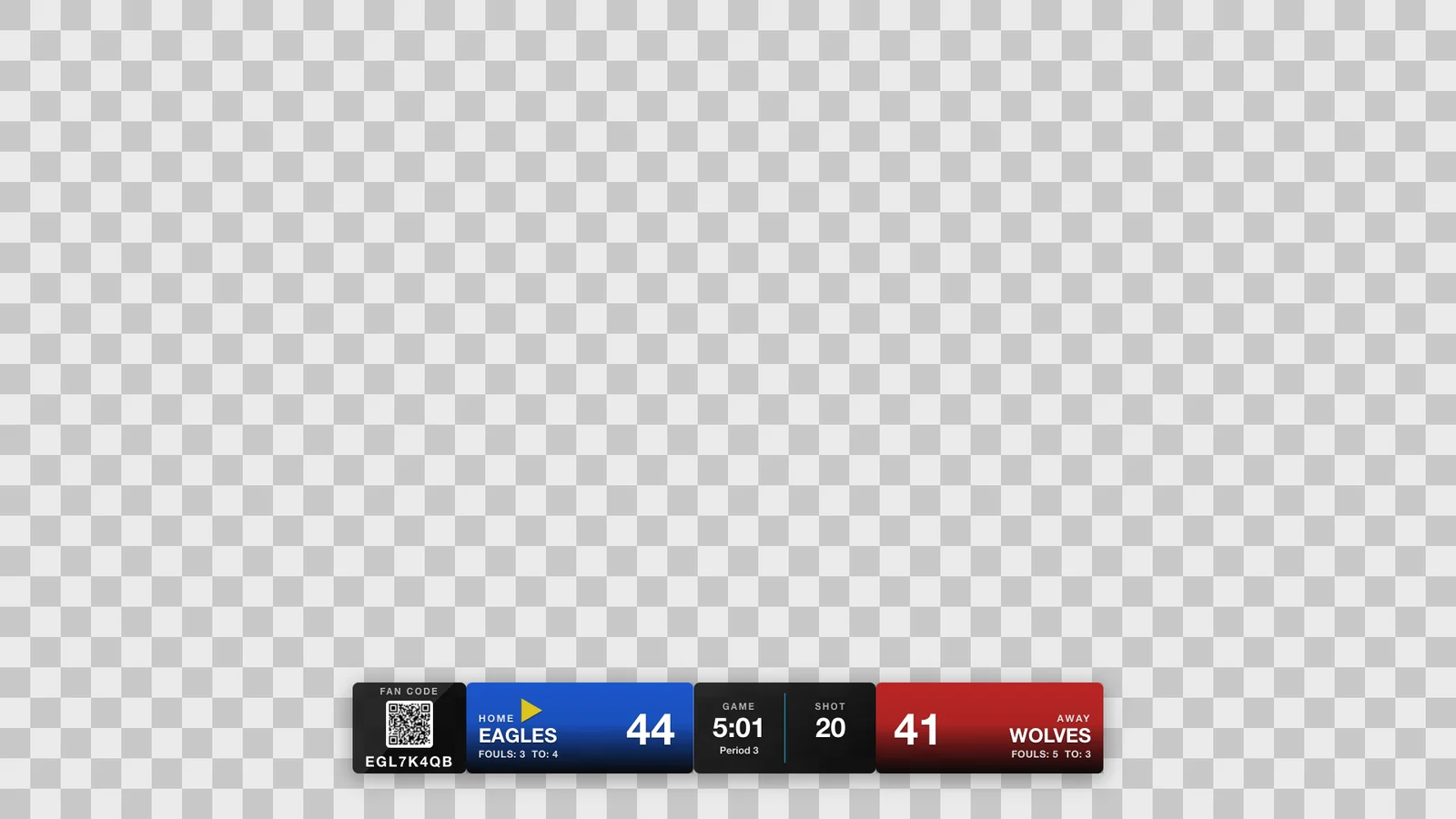
The real overlay from our video. The example game is made up.
The short answer
In CourtClok, open your game, tap Share Game and copy the OBS Overlay Link. In OBS, click + under Sources, choose Browser, paste the link as the URL and set the size to 1920 by 1080. Keep score in the app and the score bar on your stream updates live.
What you need
CourtClok on your phone or iPad, with the game you're streaming scheduled in the app. That's where you keep score.
OBS Studio on the computer that runs your stream, with your camera already set up as a source.
Internet on both. The phone and the computer don't need to be on the same Wi-Fi.
The overlay is a web page. OBS shows web pages with a Browser source, which OBS describes as a way to add a web page to your scene (OBS sources guide). There's nothing to install.
Tip: Prefer to watch first? The video walkthrough shows every step with the real overlay updating live.
Step 1: Copy the OBS Overlay Link
📱 In the CourtClok app
Open Schedule Manager and tap your game.
Tap Share Game.
Find the OBS Overlay Link card and tap Copy. If OBS is on a different device, tap Share OBS Overlay Link instead and send the link to that computer, for example by email or AirDrop.
You should see: a link that looks like courtclok.com/obs.html?code= followed by your game's fan code. Each game has its own link.
Step 2: Add a Browser source in OBS
💻 In OBS
Select the scene you stream from.
Click + under Sources and choose Browser.
Give it a name, such as Scoreboard, and click OK.
Paste the link into URL.
Set Width to 1920 and Height to 1080, then click OK.
Don't skip the size. A new Browser source opens at 800 by 600 (OBS Browser Source docs), and the overlay is laid out for a 1920 by 1080 frame.
Make sure the scoreboard source sits above your camera in the Sources list, so it's drawn on top.
Step 3: Keep score in the app
Start the game in CourtClok and keep score as usual. Every score, clock change and timeout goes to the overlay, and your stream updates live. You don't touch OBS again during the game.
The checkerboard shows the see-through part. On your stream, that's your camera.
The background is transparent, so only the score bar shows, along the bottom of the frame. OBS Browser sources are transparent by default (OBS Browser Source docs), and the overlay is built for it.
Fans can scan the QR code on the bar, or type the fan code, to follow the live score on their own phones.
Timeouts switch to the full scoreboard
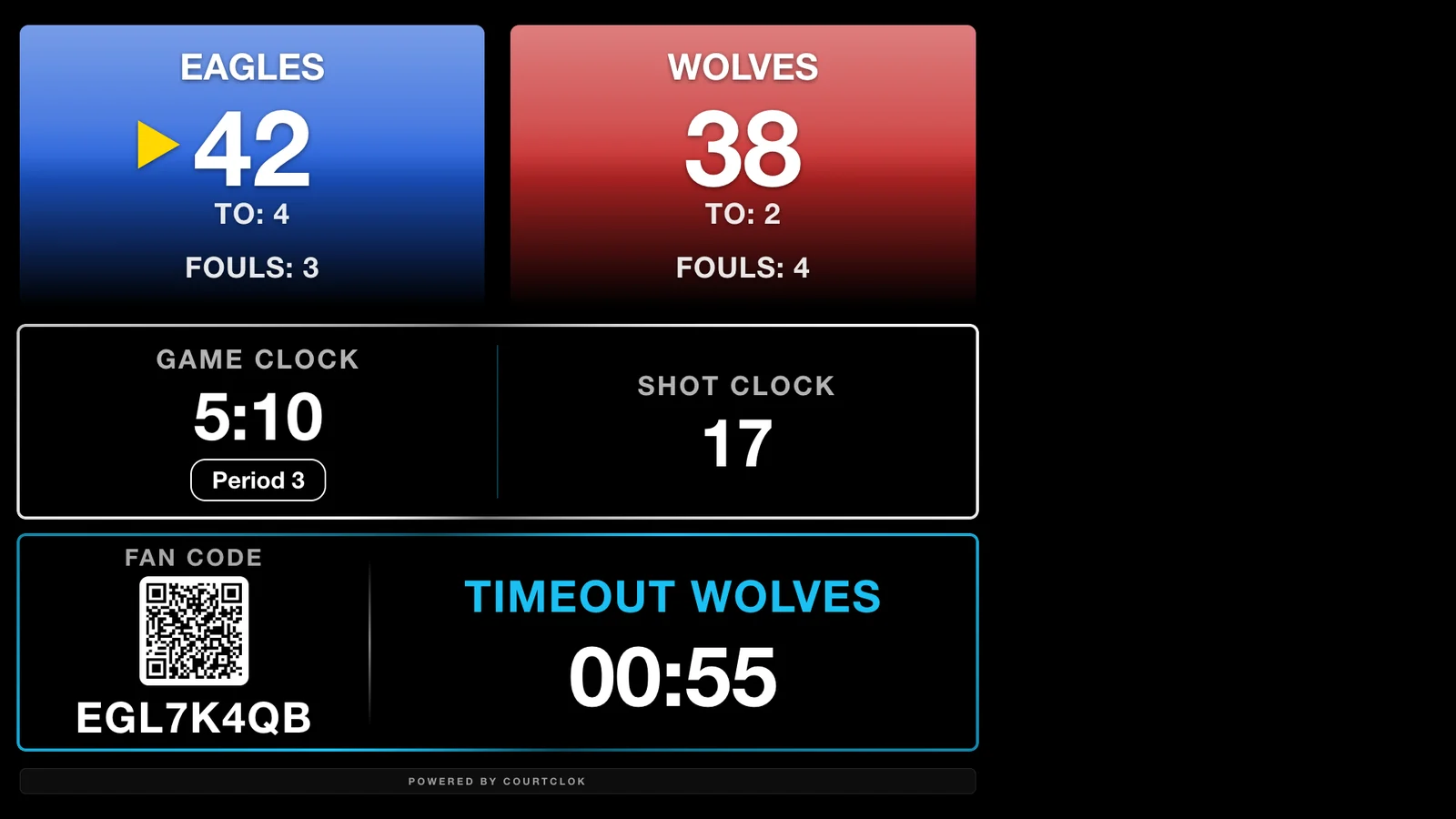
During timeouts, warm-ups and breaks, the overlay switches from the score bar to a full-screen scoreboard with the countdown, then switches back when play starts again. It happens by itself, from what you enter in the app.
During a timeout: the full board with the countdown
The empty space on the right of the full board is where your sponsor ads show, if you've added any in CourtClok.
Link options
You can change how the overlay looks by adding options to the end of the link, each starting with &. For example: courtclok.com/obs.html?code=YOURCODE&bg=black
Add to the link
What it does
&layout=split
Shows the full-screen scoreboard all the time, instead of the score bar.
&autoswitch=0
Keeps the score bar up during timeouts, warm-ups and breaks, instead of switching to the full board.
&bg=black
Solid black background instead of transparent.
&scale=0.8
Makes the overlay smaller (0.8 is 80%). Use a number above 1 to make it bigger.
&mute=1
Turns off the sound of sponsor video ads on the overlay.
Tip: After you change the link, paste the new one into the Browser source's URL in OBS (double-click the source to open its properties).
If something doesn't look right
Problem
What to check
The overlay is blank
Check the code in the link is the game you're scoring. The overlay fills in once the game is live, so start the game in the app and enter a score or start the clock.
The score bar is cut off or tiny
Open the Browser source's properties and set Width 1920 and Height 1080.
The camera is hidden behind black
Remove &bg=black from the link, or check you didn't add &layout=split by mistake.
The scoreboard is behind the camera
Drag the scoreboard source above the camera in the Sources list.
The overlay reloads when you switch scenes
In the source's properties, leave Shutdown source when not visible turned off. When it's on, OBS unloads the page while the source is hidden (OBS docs).
Watch it set up
The real overlay, updating live from an example game.
The whole setup in under a minute: copy the link, add a Browser source, keep score.
OBS scoreboard questions
Do I need to install anything in OBS?
No. The overlay is a web page, and OBS shows it with its built-in Browser source.
Where do I find the OBS Overlay Link?
In CourtClok, open your game from Schedule Manager and tap Share Game. The OBS Overlay Link card has a Copy button and a share button.
What size should the Browser source be?
1920 by 1080. OBS starts new Browser sources at 800 by 600, so change it when you add the source. Use &scale= in the link to make the overlay smaller or bigger.
Is the background transparent?
Yes, by default, so only the score bar shows over your camera. Add &bg=black to the link for a solid black background.
Does the score update by itself?
Yes. Keep score in the CourtClok app and the overlay updates live. You don't need to touch OBS during the game.
Can fans follow the score too?
Yes. The score bar shows the game's fan code and a QR code. Fans scan it to follow the live score on their phones.
Ready to put the score on your stream? Download CourtClok, schedule your game and copy the OBS Overlay Link. Keep score on your phone and the overlay follows.