How to turn any TV into a free basketball scoreboard
By the CourtClok team · Updated October 2026 · 12 min read · 2 sources
From our setup video. Every screenshot below is from the real app.
The short answer
Plug an Apple TV into the gym TV and install CourtClok Scoreboard Display. On your iPhone, open CourtClok, start a Quick Game and tap the red broadcast button to create a channel. Type the channel code on the TV, then tap your channel on the iPhone: the TV shows a live scoreboard you control from your phone.
What you need
An Apple TV HD or Apple TV 4K plugged into the TV. It subscribes to your iPhone's channel and shows the scoreboard. Android TV and Fire TV Stick support is coming soon.
An iPhone with the CourtClok app. You run the clock, score, fouls and timeouts from here, and it broadcasts everything to the TV.
A smart TV's web browser or a laptop won't work: the TV side needs the app. Not sure your Apple TV is new enough? Check the Apple TV compatibility list.
Why use a TV as your basketball scoreboard
A portable electronic scoreboard usually costs hundreds of dollars, and a wall-mounted one far more. Most of them only show the score, the clock and maybe the period. A TV running CourtClok shows a lot more:
Game clock and shot clock on the same screen, with a horn.
Team fouls, timeouts left and a possession arrow, so nobody has to keep track on paper.
A timeout countdown and a warm-up timer that take over the screen when you need them.
Sponsor banners, so the scoreboard can help pay for the season.
It also moves with you. If your team plays in a school gym one week and a community centre the next, the scoreboard is whatever TV is on the wall, plus an Apple TV in your bag. It works for youth leagues, rec leagues, tournaments, practices and scrimmages.
Step 1: Install CourtClok on your Apple TV
📺 On the TV
On the Apple TV, open the App Store.
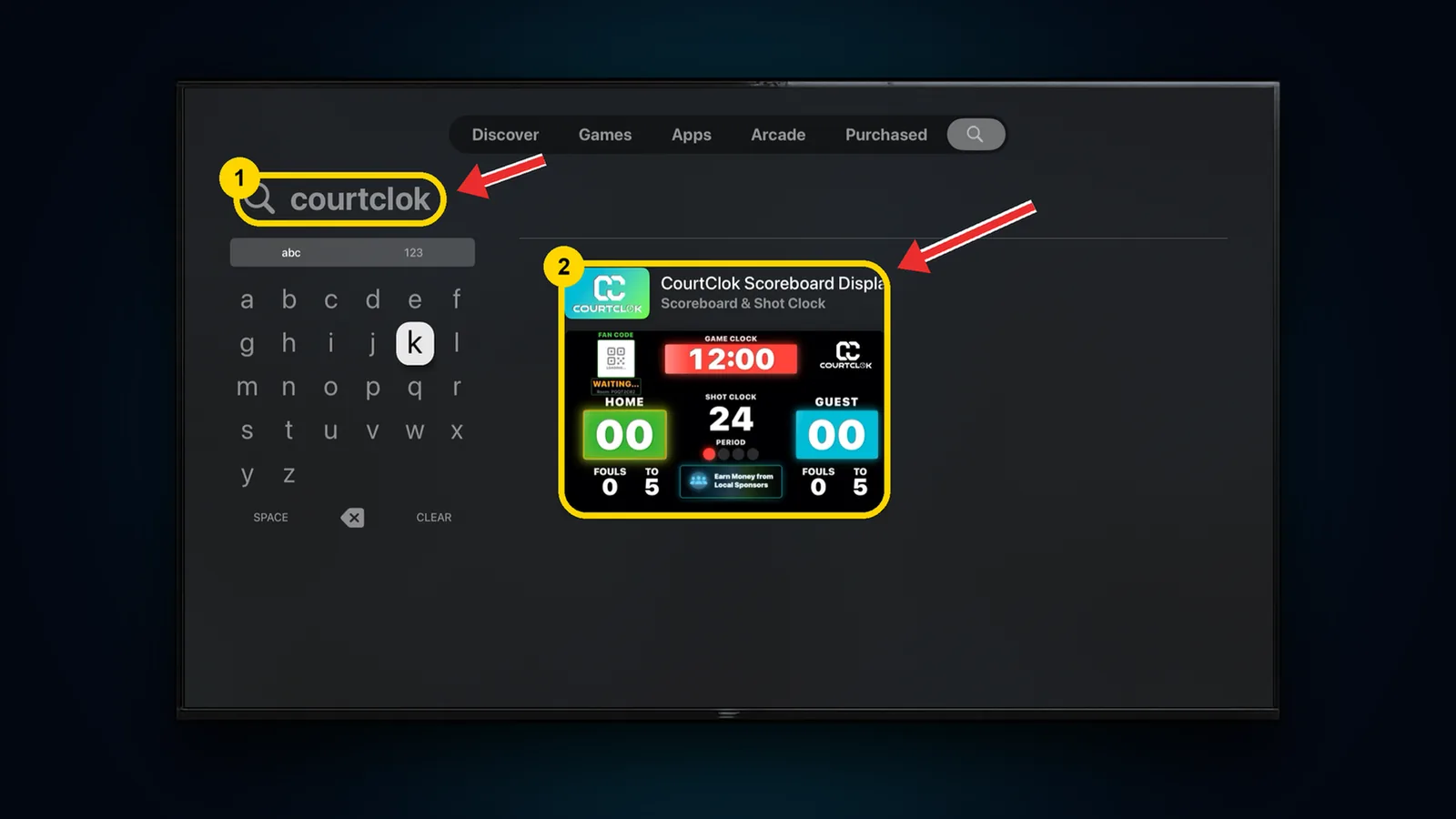
Select the search icon and type courtclok (1). Select CourtClok Scoreboard Display (2).
Search courtclok (1), then select CourtClok Scoreboard Display (2)
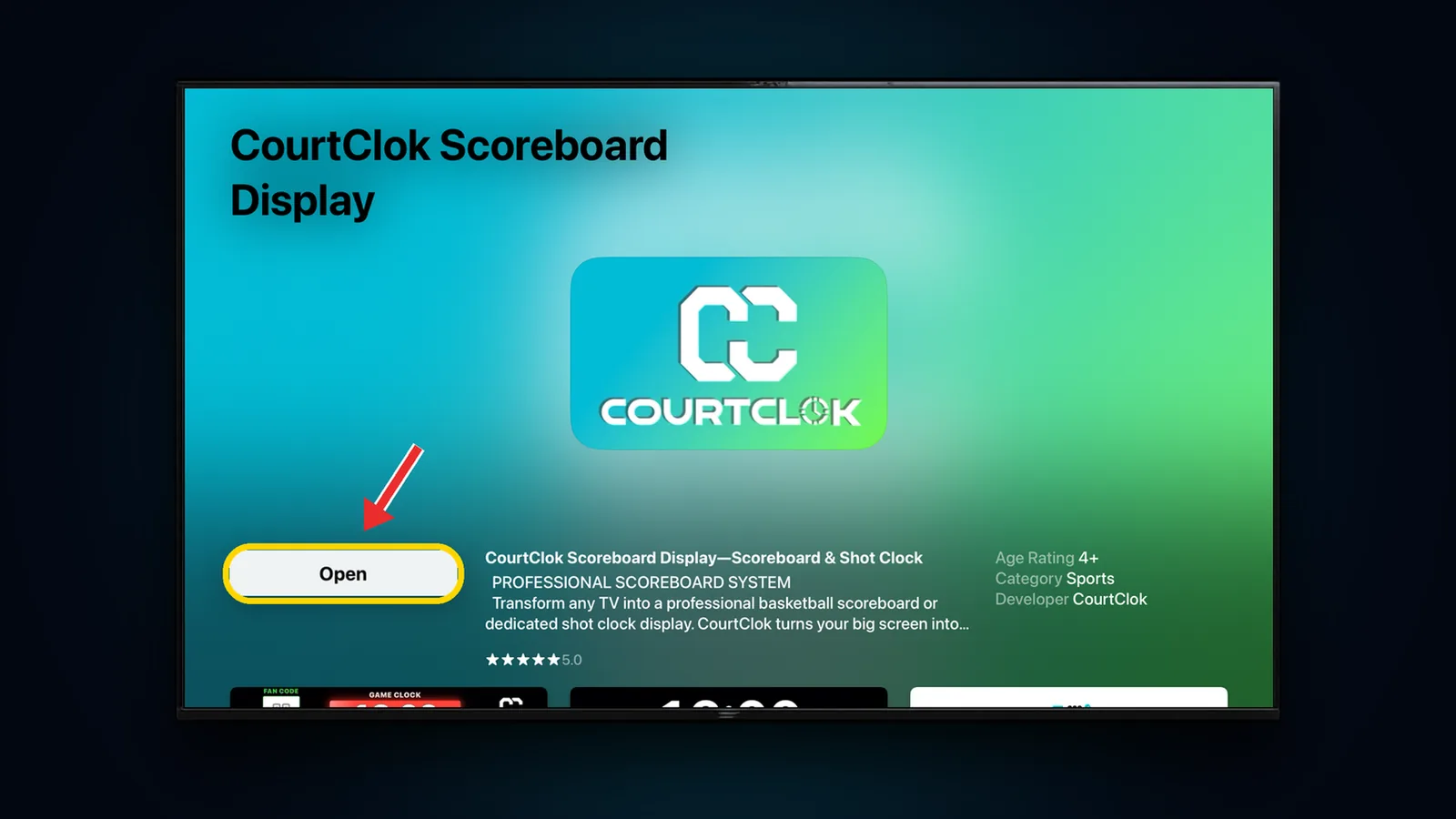
Select Get to install it, then Open. The same button changes from Get to Open once it's installed.
The app page: Get to install, then Open
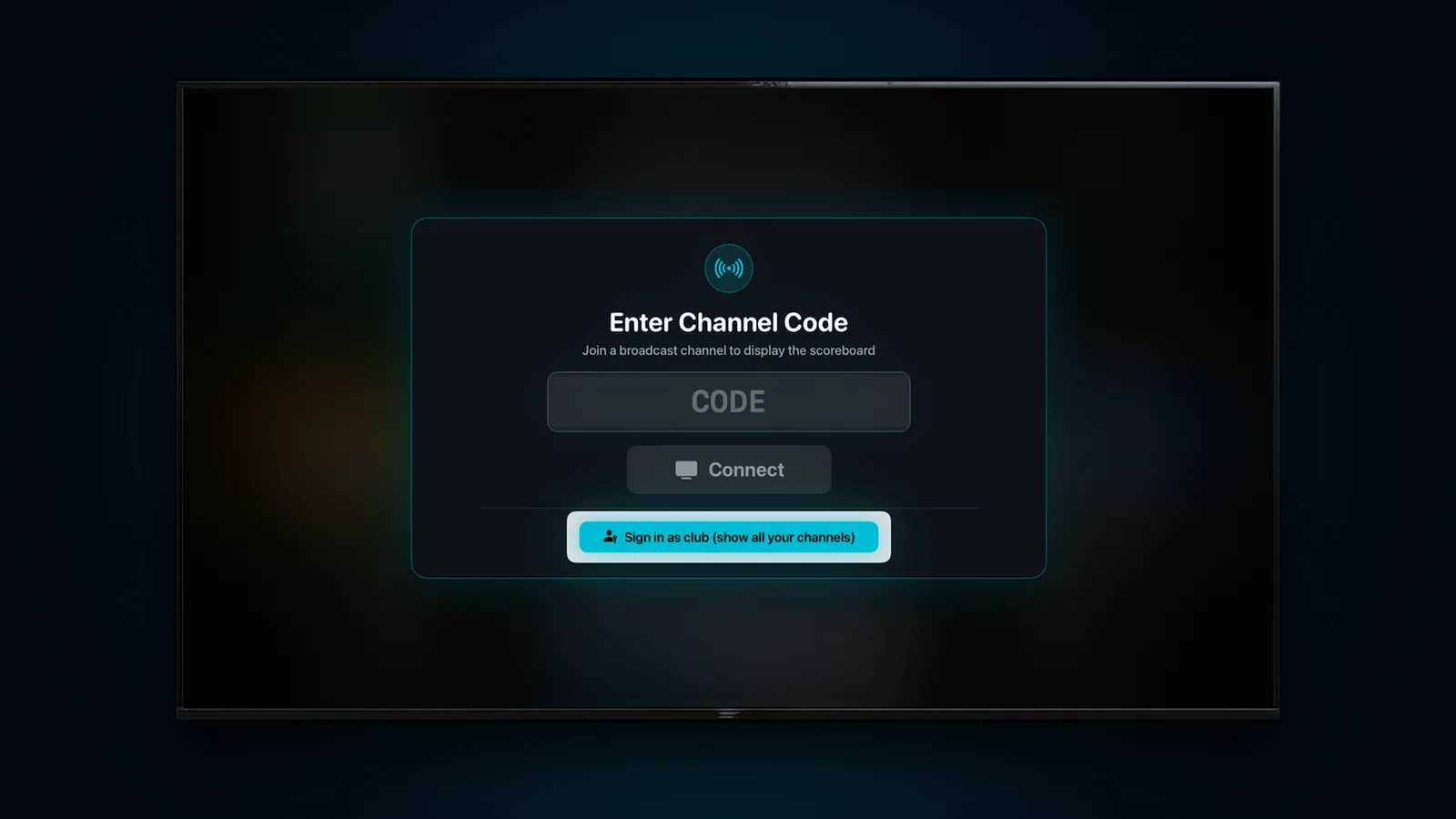
You should see: the Enter Channel Code screen. Leave the TV here; you'll come back to it in Step 4.
What the Apple TV shows the first time you open CourtClok
Step 2: Set up CourtClok on your iPhone
📱 On the iPhone
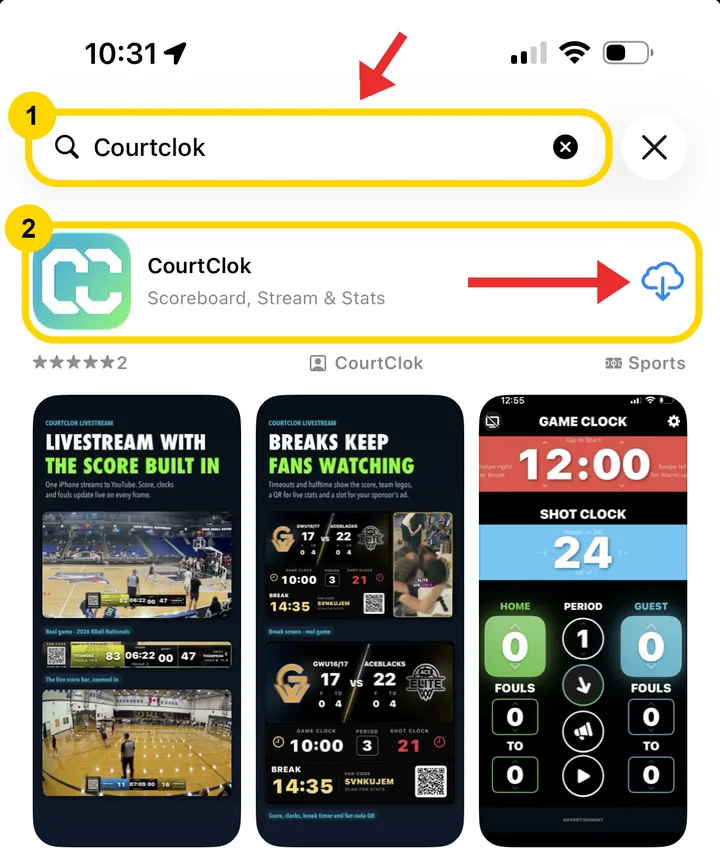
Open the App Store and search CourtClok (1).
Next to CourtClok: Scoreboard, Stream & Stats, tap Get or the download button (2).
Search CourtClok (1), then tap Get (2)
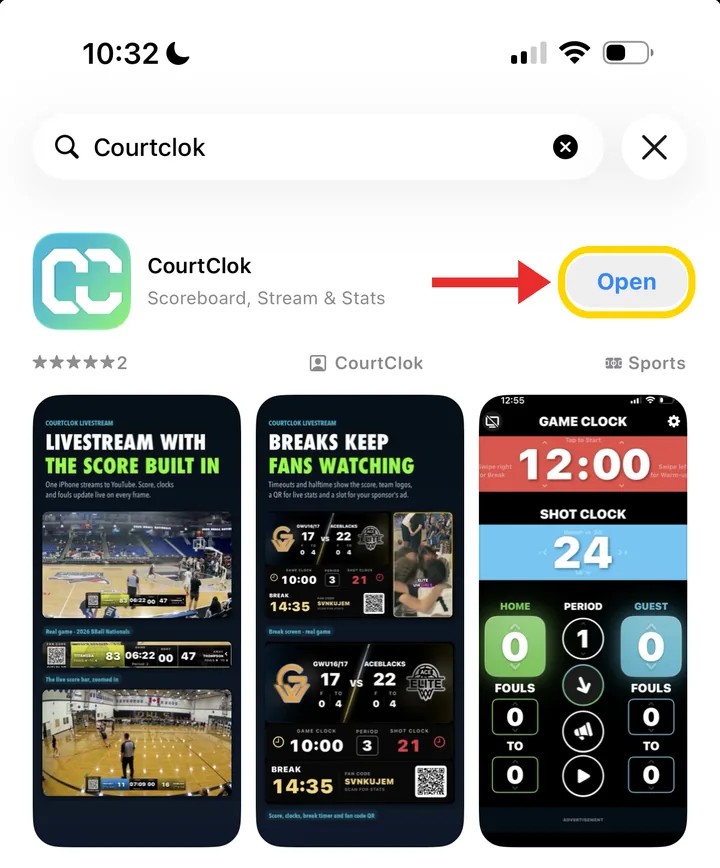
When it finishes installing, tap Open.
Once it's installed, the button changes to Open
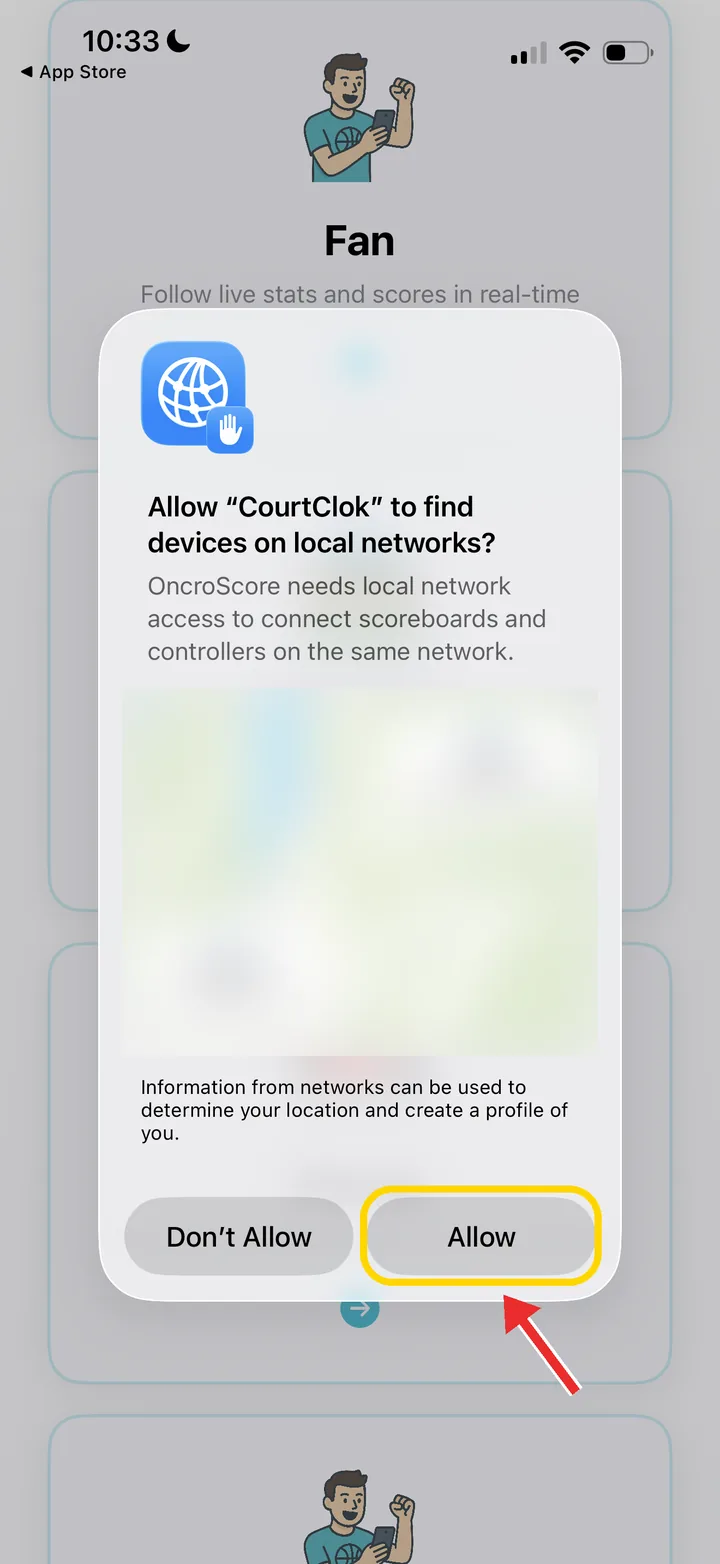
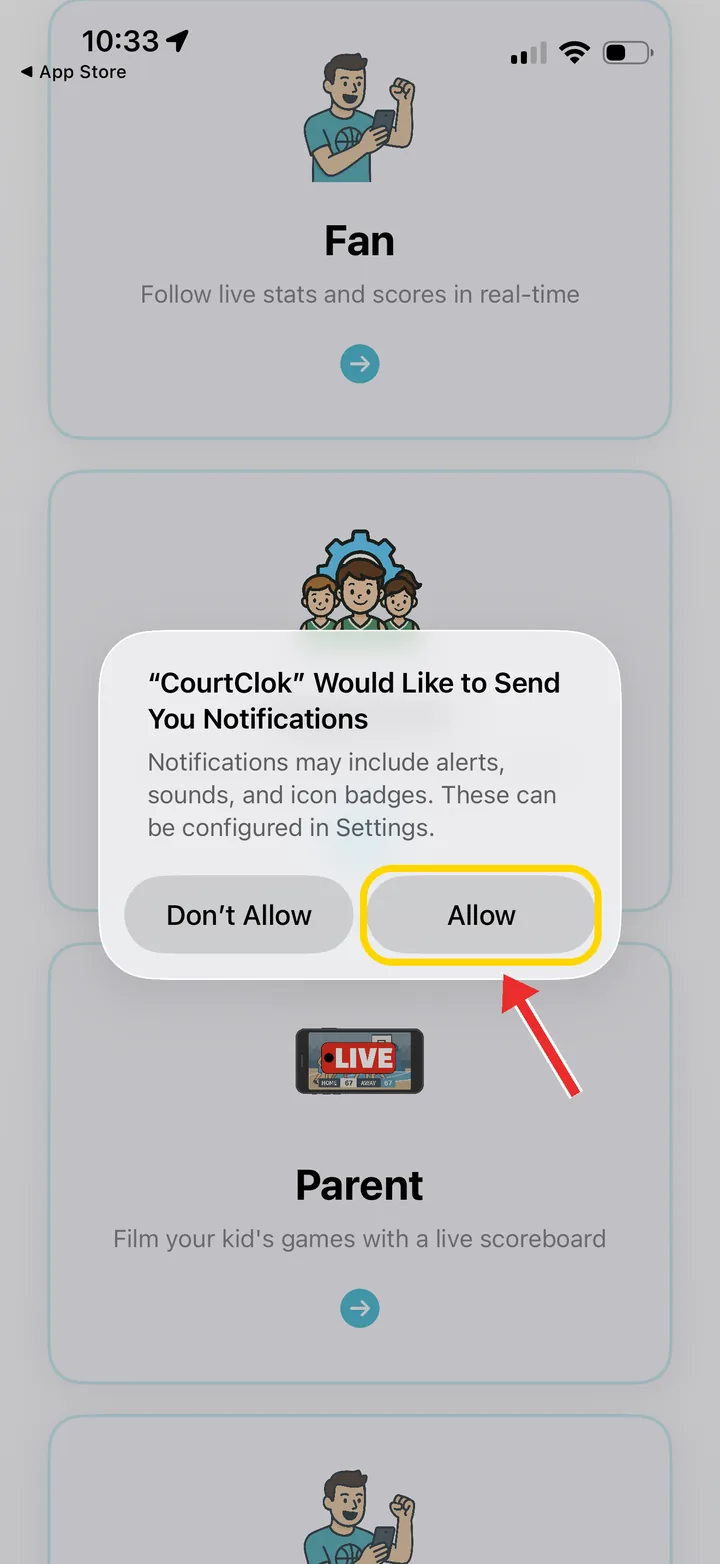
Tap Allow on both prompts: finding devices on your local network, and notifications.
Allow local network accessAllow notifications
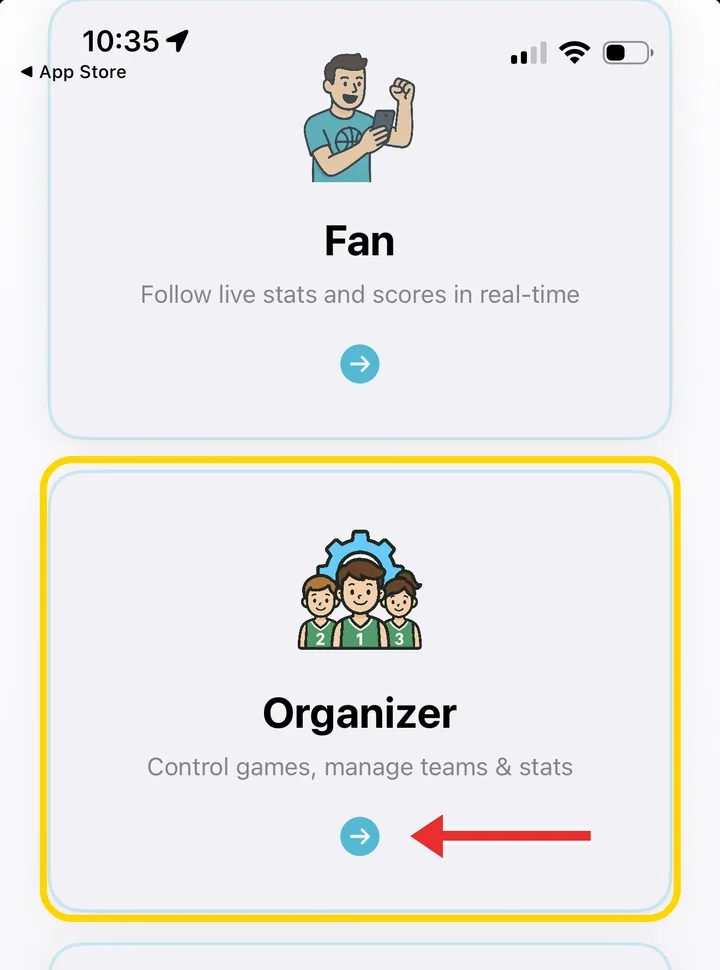
Choose Organizer ("Control games, manage teams & stats") and tap its arrow. Fan and Parent are for following or filming games.
Choose Organizer to run the scoreboard
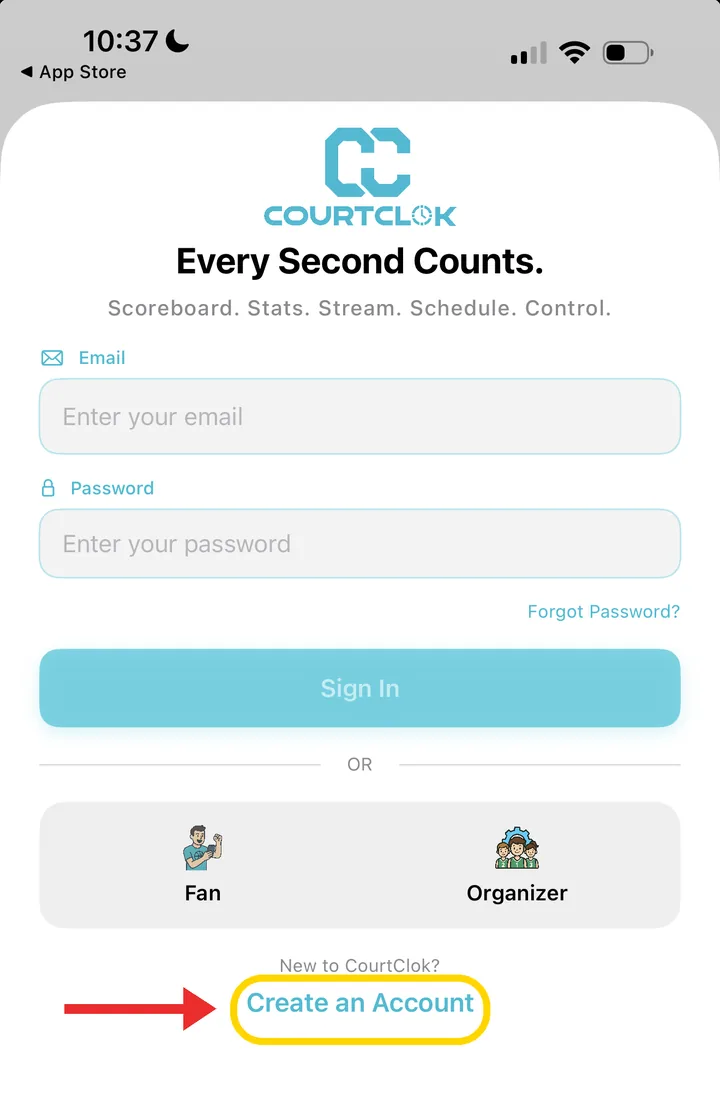
On the sign-in screen, tap Create an Account. (Already have one? Enter your email and password and tap Sign In.)
New to CourtClok? Tap Create an Account
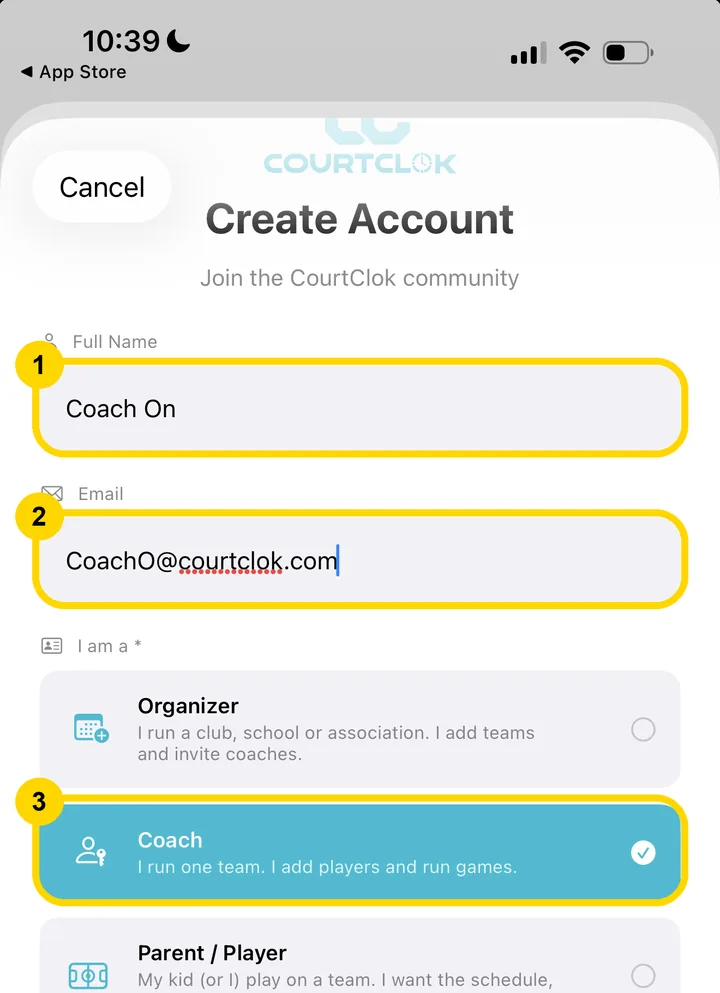
Enter your Full Name (1) and Email (2).
Under I am a, choose your role (3). Coach ("I run one team. I add players and run games.") fits most people running a scoreboard. Organizer is for a club, school or association.
Full name (1), email (2), role (3)
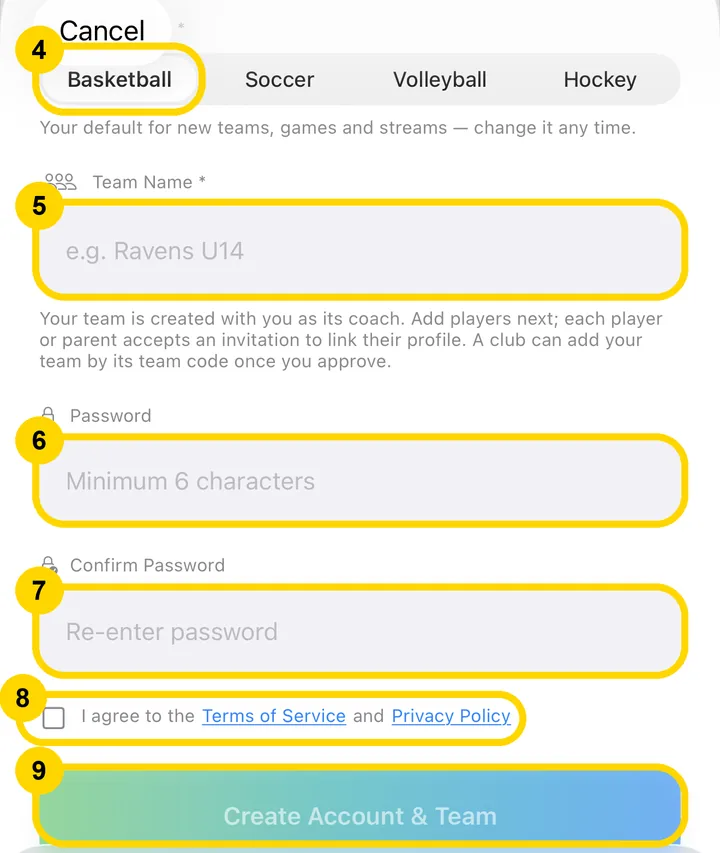
Pick your main sport, Basketball (4).
Enter your Team Name (5), for example "Ravens U14".
Enter a Password of at least 6 characters (6) and type it again in Confirm Password (7).
Tick I agree to the Terms of Service and Privacy Policy (8).
Tap Create Account & Team (9). For an Organizer it says Create Account & Organization.
Sport (4), team name (5), password (6, 7), terms (8), create (9)
You should see: "You're all set". CourtClok emails you a link to verify your address; verify it before your next sign-in. Then you land on the home screen with Schedule Manager, Manage Teams and Quick Game Controller.
Step 3: Start a quick game
📱 On the iPhone
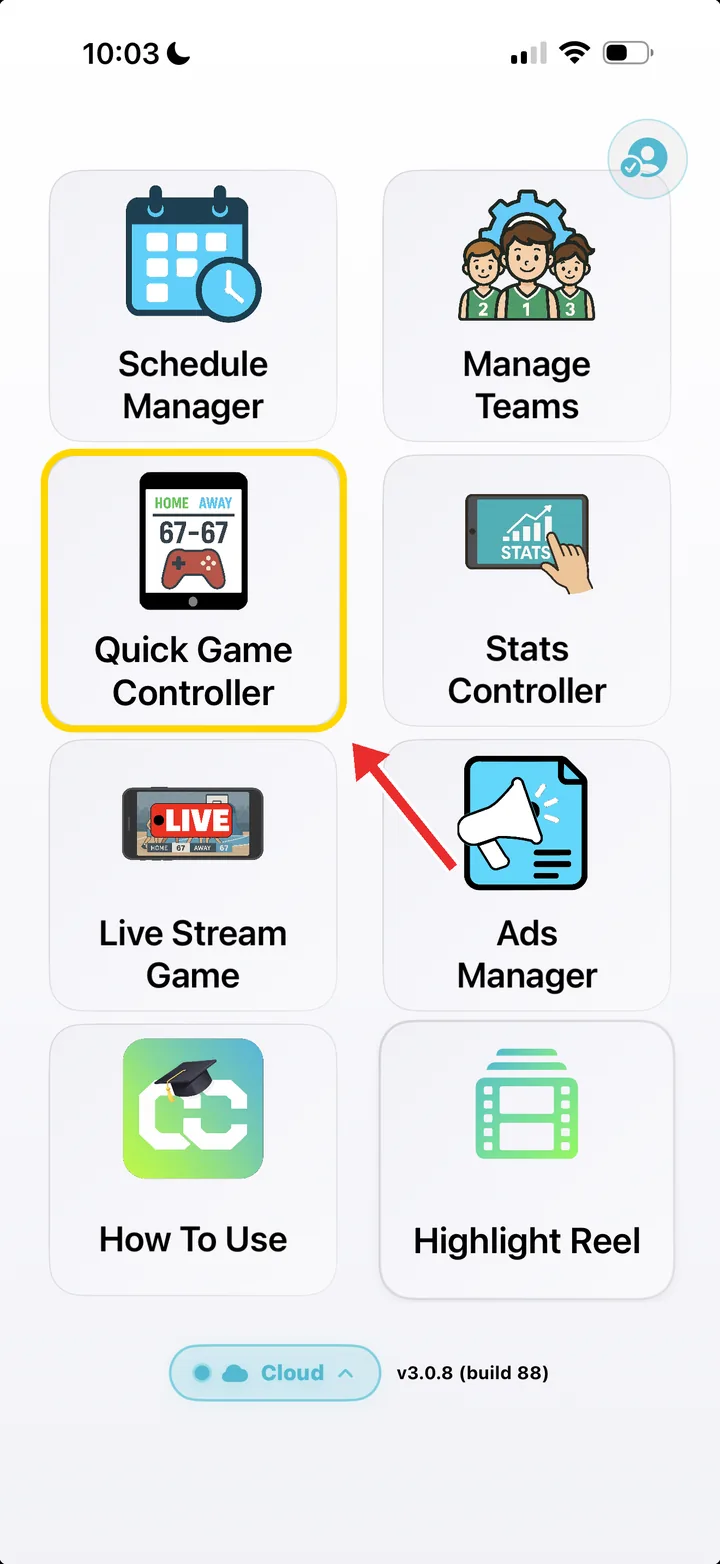
On the home screen, tap Quick Game Controller.
Tap Quick Game Controller
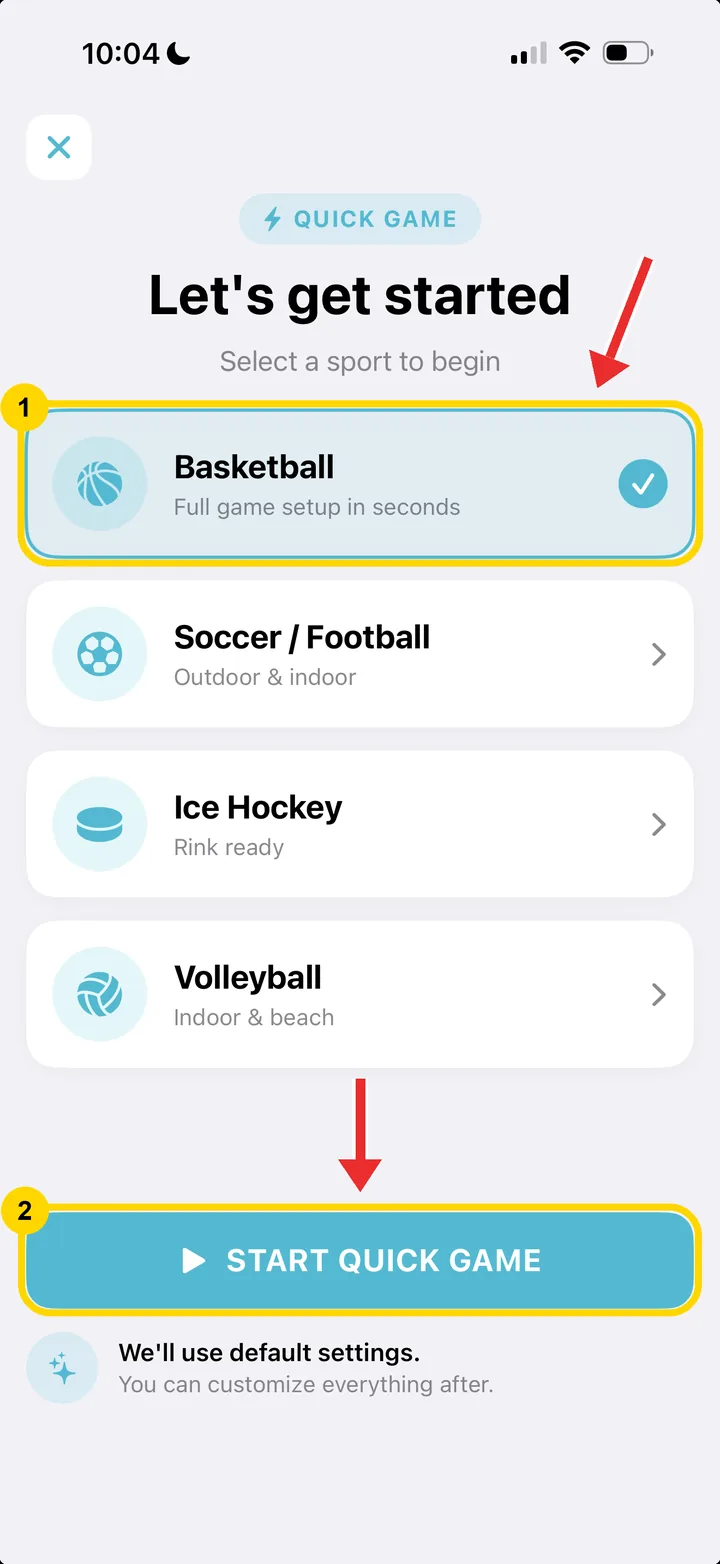
Select Basketball (1).
Tap Start Quick Game (2). It uses default settings, and you can change everything later.
Select basketball (1), then Start Quick Game (2)
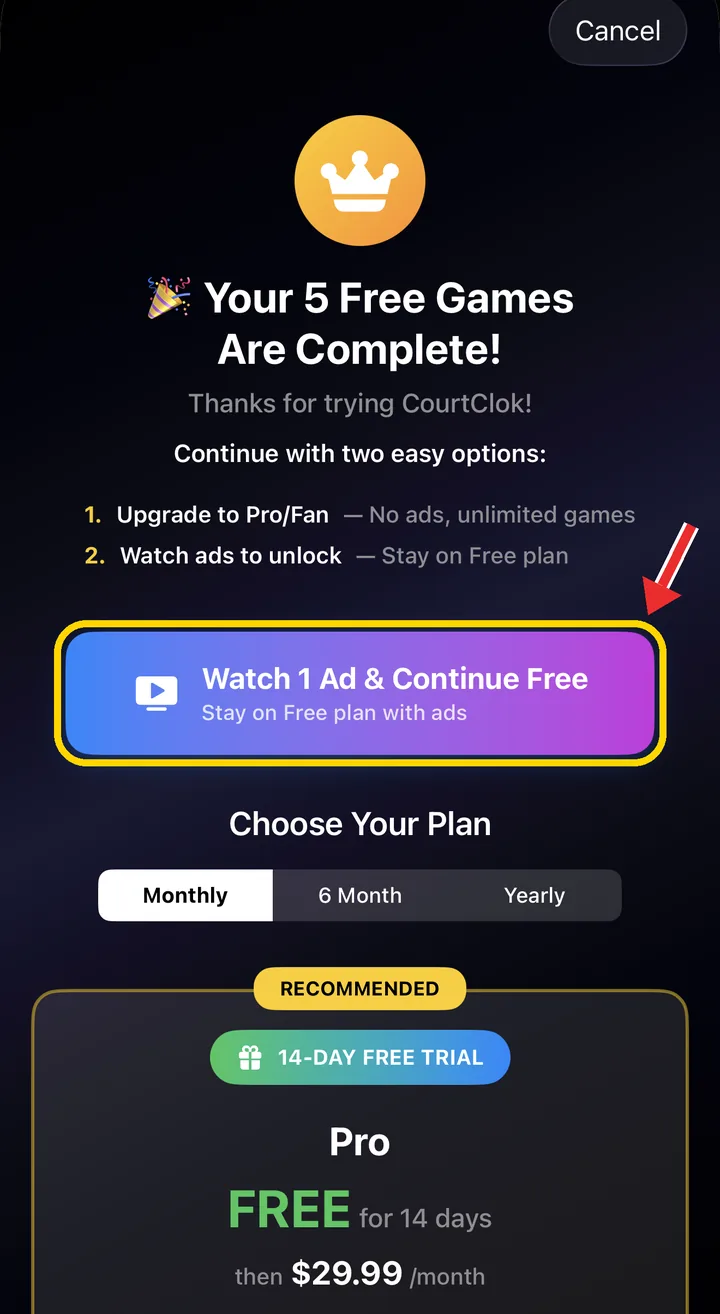
Your first 5 games are free. After that, tap Watch 1 Ad & Continue Free (unlocks CourtClok for three hours, enough for a full game) or start Pro with a 14-day free trial, then $29.99 a month.
After 5 free games: watch 1 ad, or try Pro free for 14 days
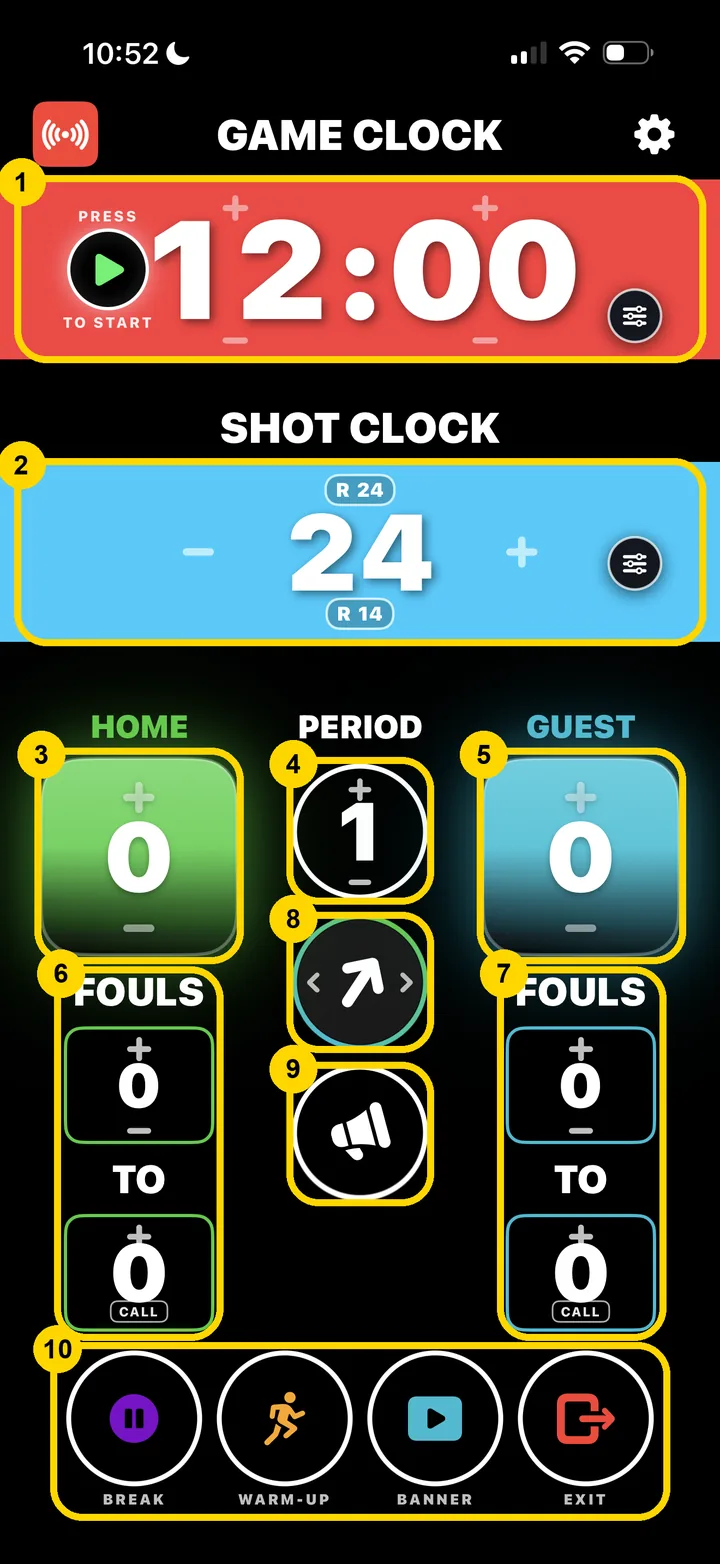
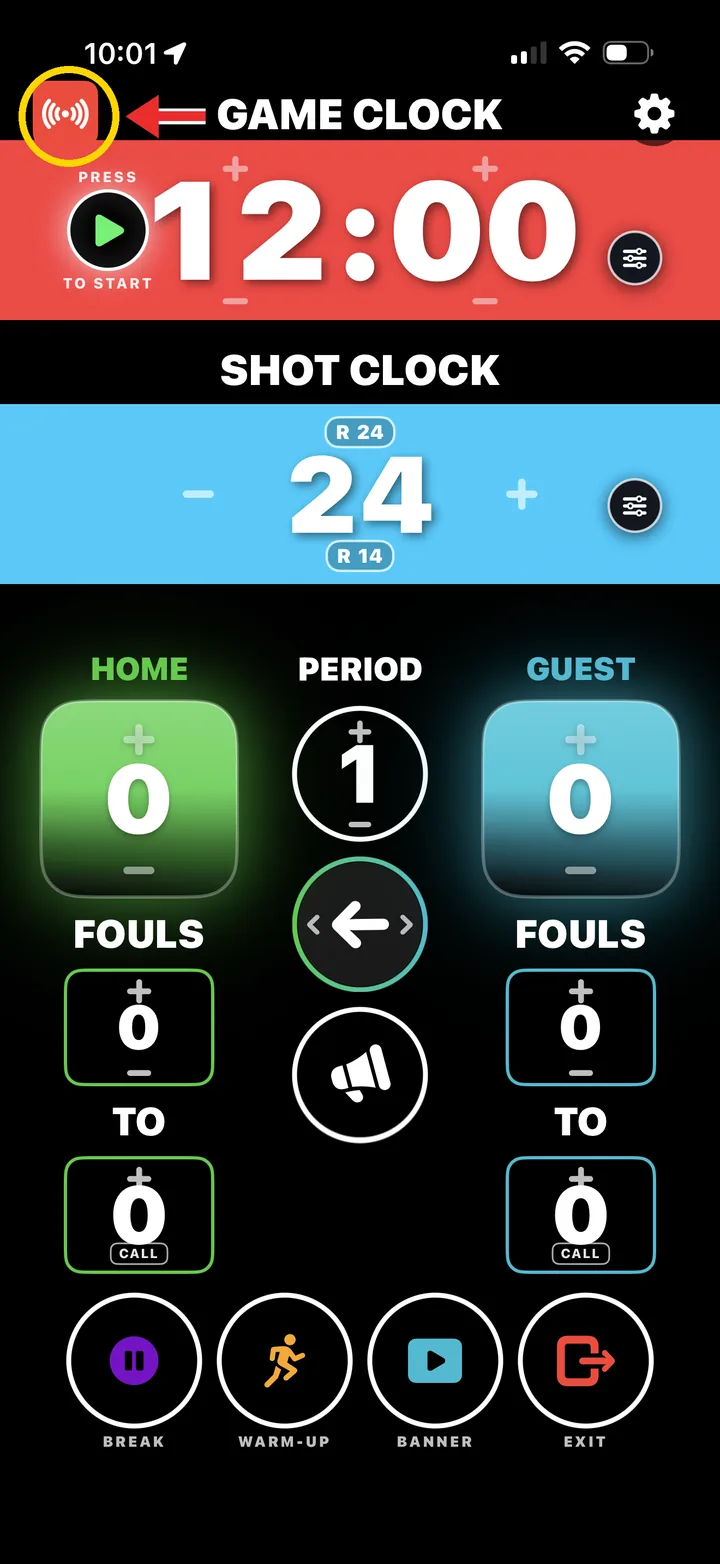
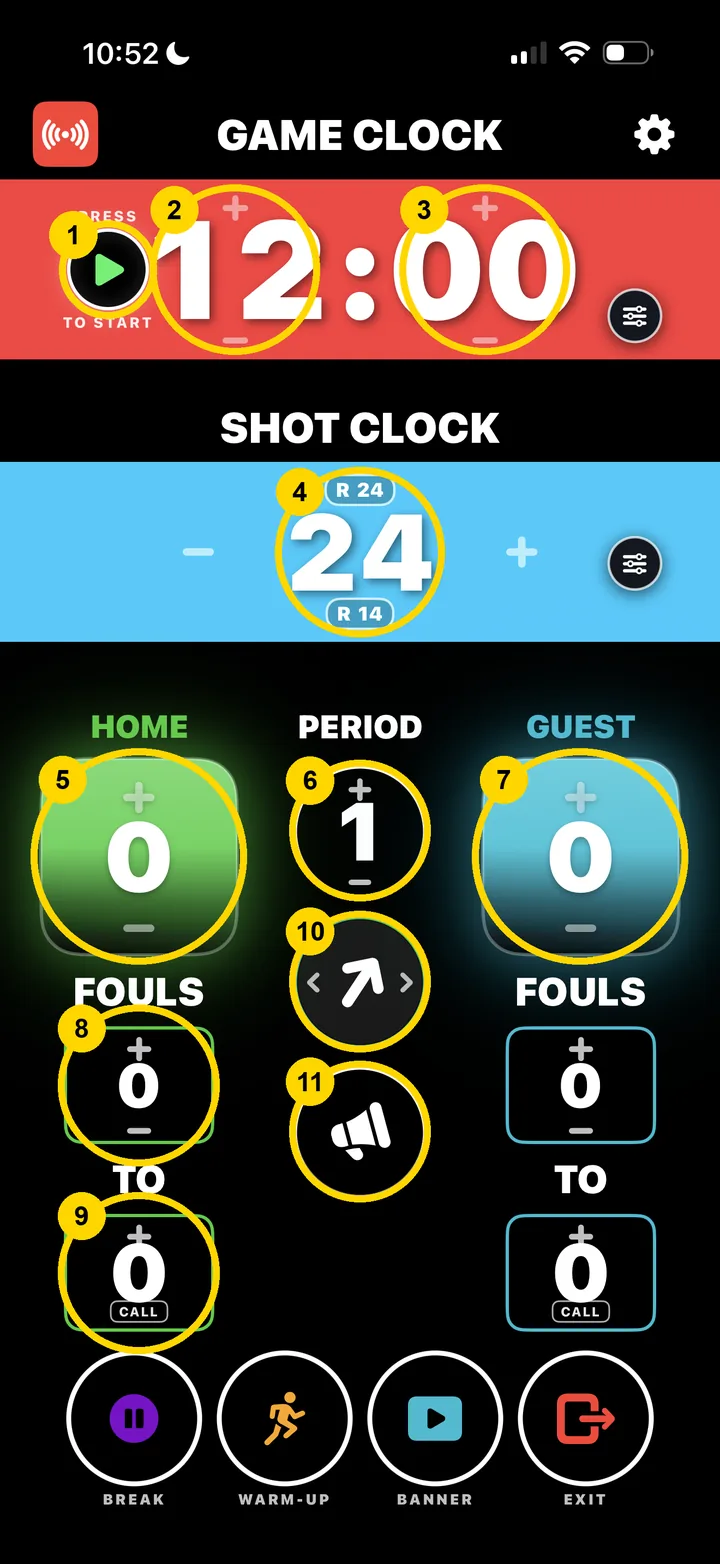
You should see: the controller. Numbered: 1 game clock (press play to start), 2 shot clock, 3 Home score, 4 period, 5 Guest score, 6–7 team fouls and timeouts (TO), 8 possession arrow, 9 horn, 10 Break, Warm-up, Banner (sponsor ads) and Exit.
The basketball controller, numbered
Step 4: Broadcast from your iPhone, subscribe on the TV
This is the part people get stuck on, and it's simple once you see it. Your iPhone is the controller and the broadcaster: it broadcasts the game on a channel. Your TV subscribes to that channel and shows whatever the broadcaster sends. (Prefer to sign the TV in to your team account instead of typing a code? See Option B.)
📱 On the iPhone
Tap the red broadcast button in the top left corner of the controller.
The red broadcast button, top left
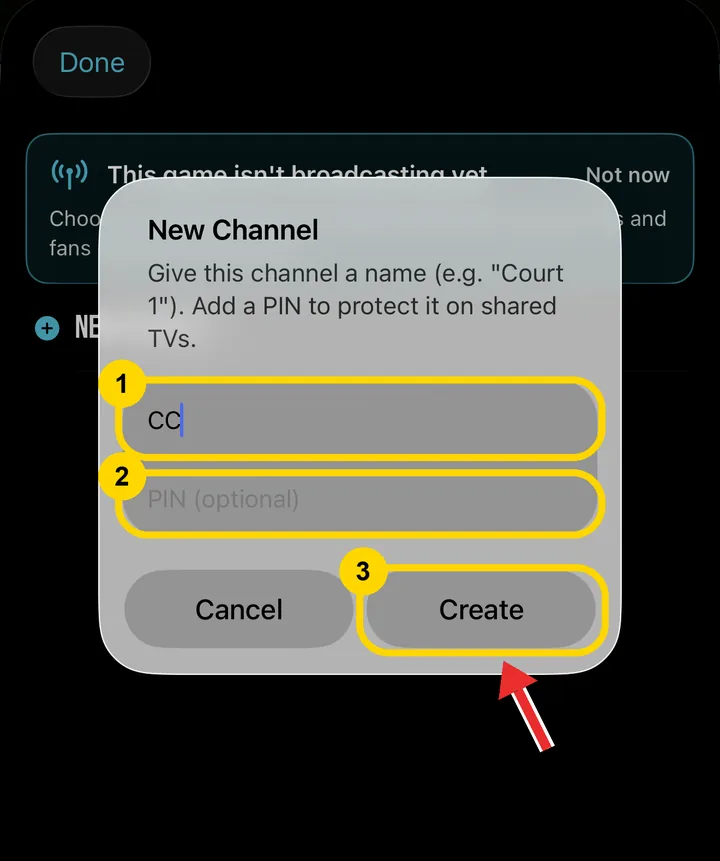
Tap New Channel and type a channel name you'll recognise, like the court it's on ("Court 1") (1).
Optional: add a PIN (2). It stops anyone else subscribing to your channel on a shared TV.
Tap Create (3).
Channel name (1), optional PIN (2), Create (3)
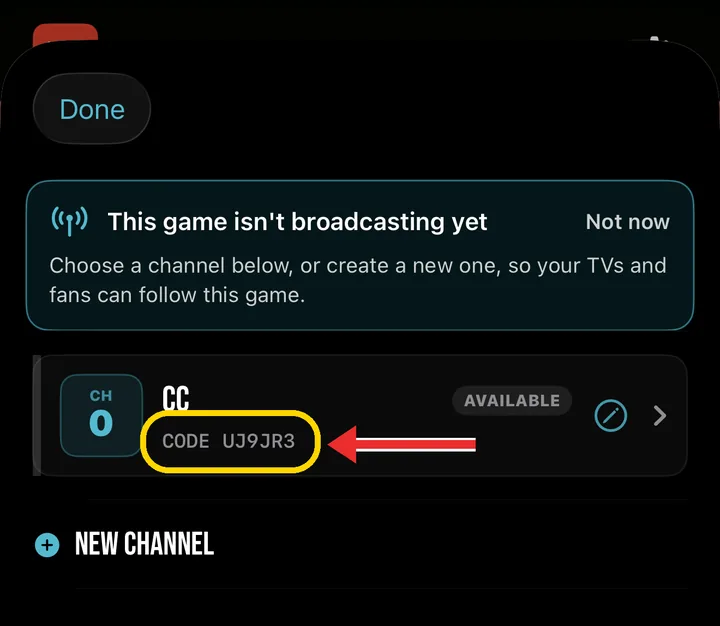
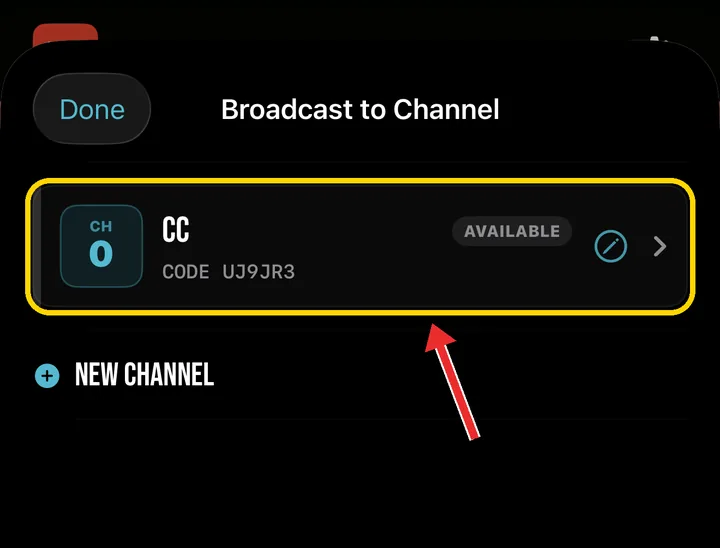
Your channel appears in the list with its channel code underneath (here UJ9JR3). Keep this screen handy.
Your channel code
📺 On the TV
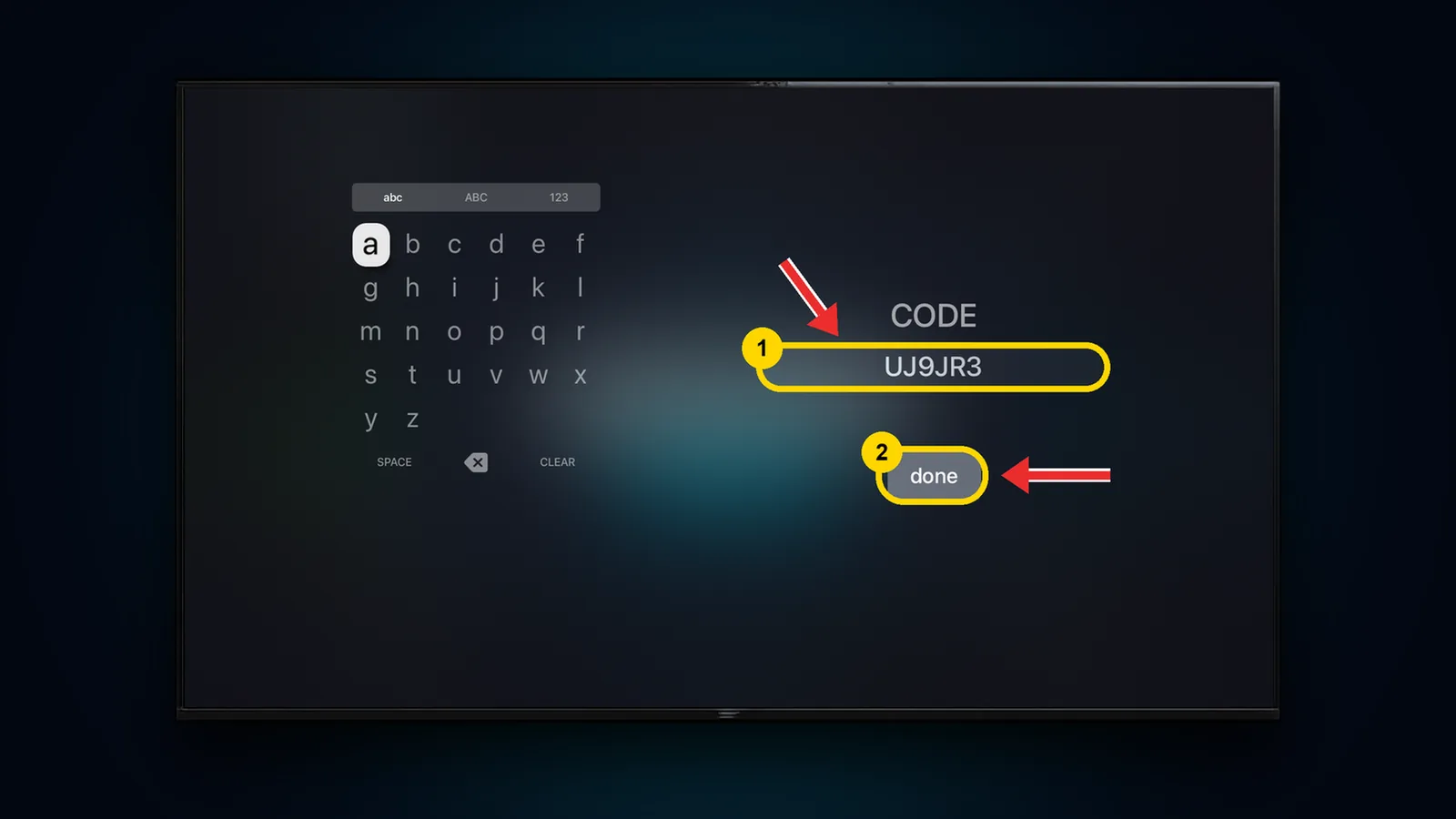
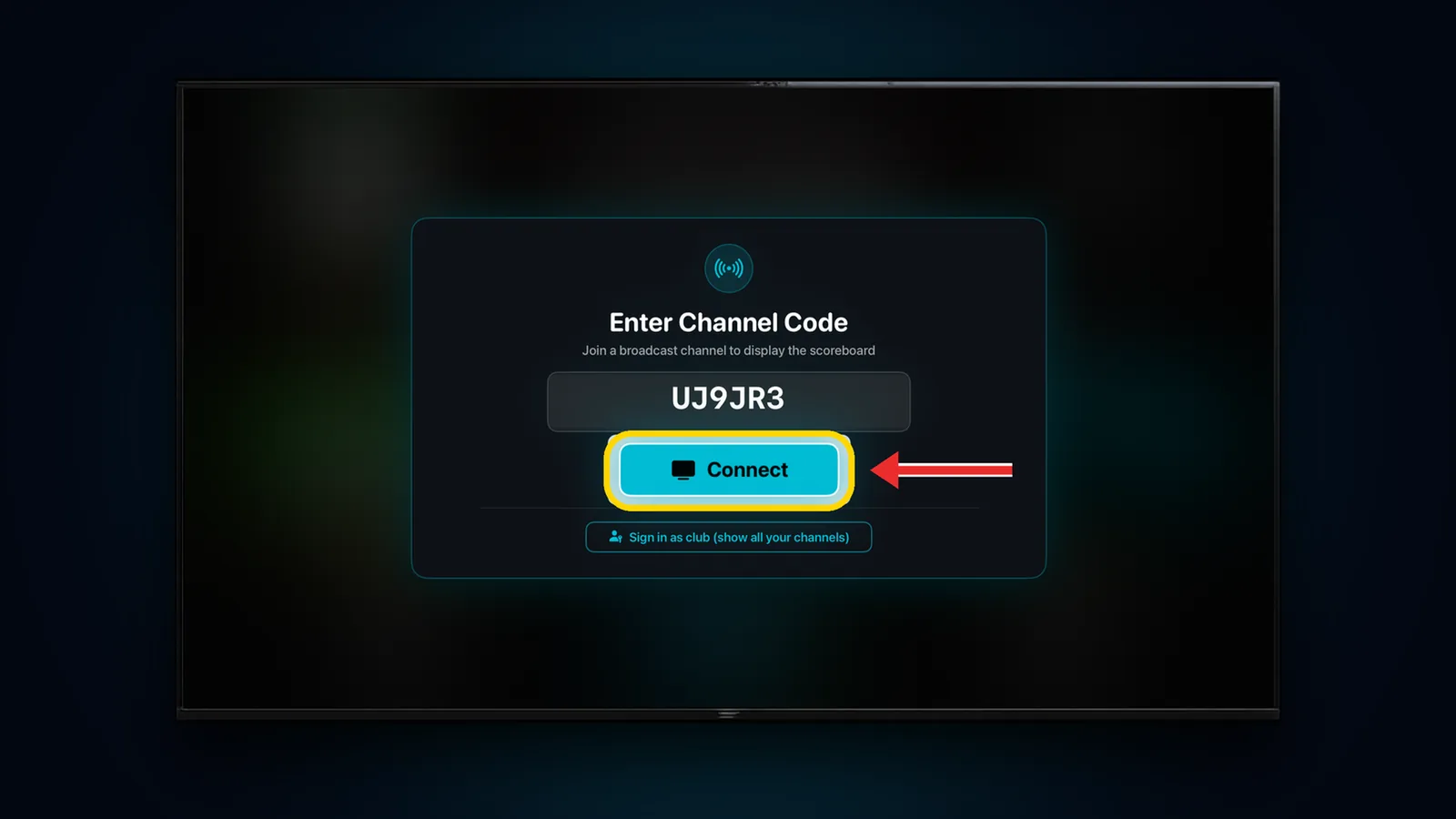
On Enter Channel Code, select the CODE box, type the code exactly as it shows on your iPhone (1), then select done (2).
Type the code (1), then done (2)
Select Connect. If the channel has a PIN, enter it.
Code filled in: select Connect
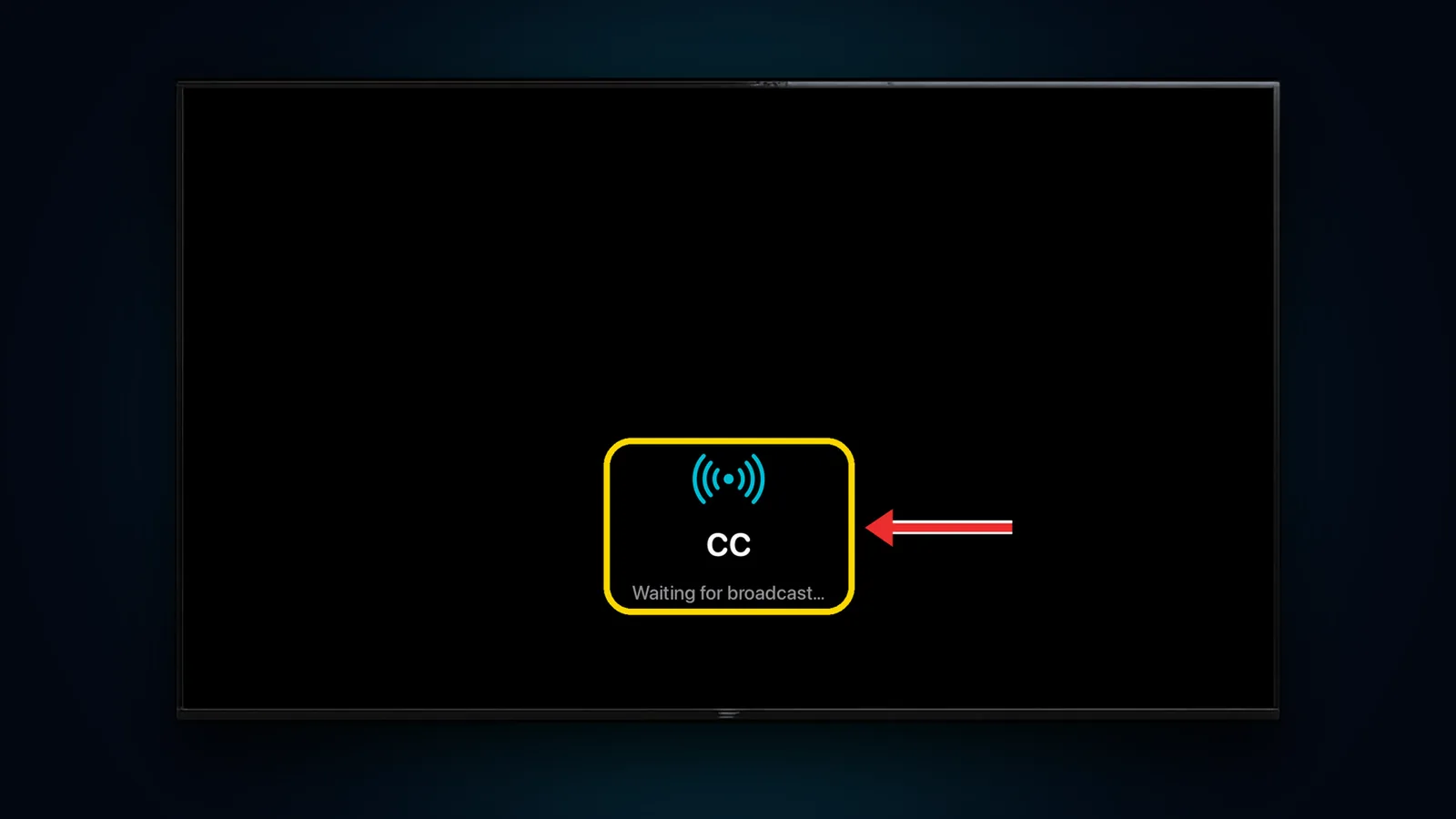
Seeing your channel name and Waiting for broadcast…? That's normal: the TV is subscribed. It switches to the scoreboard as soon as your iPhone starts broadcasting on that channel, and comes back to this screen when a game ends.
Subscribed, waiting for your iPhone
📱 Back on the iPhone
Tap the red broadcast button again (if the channel list is closed), then tap your channel to start broadcasting on it.
Tap your channel to start broadcasting
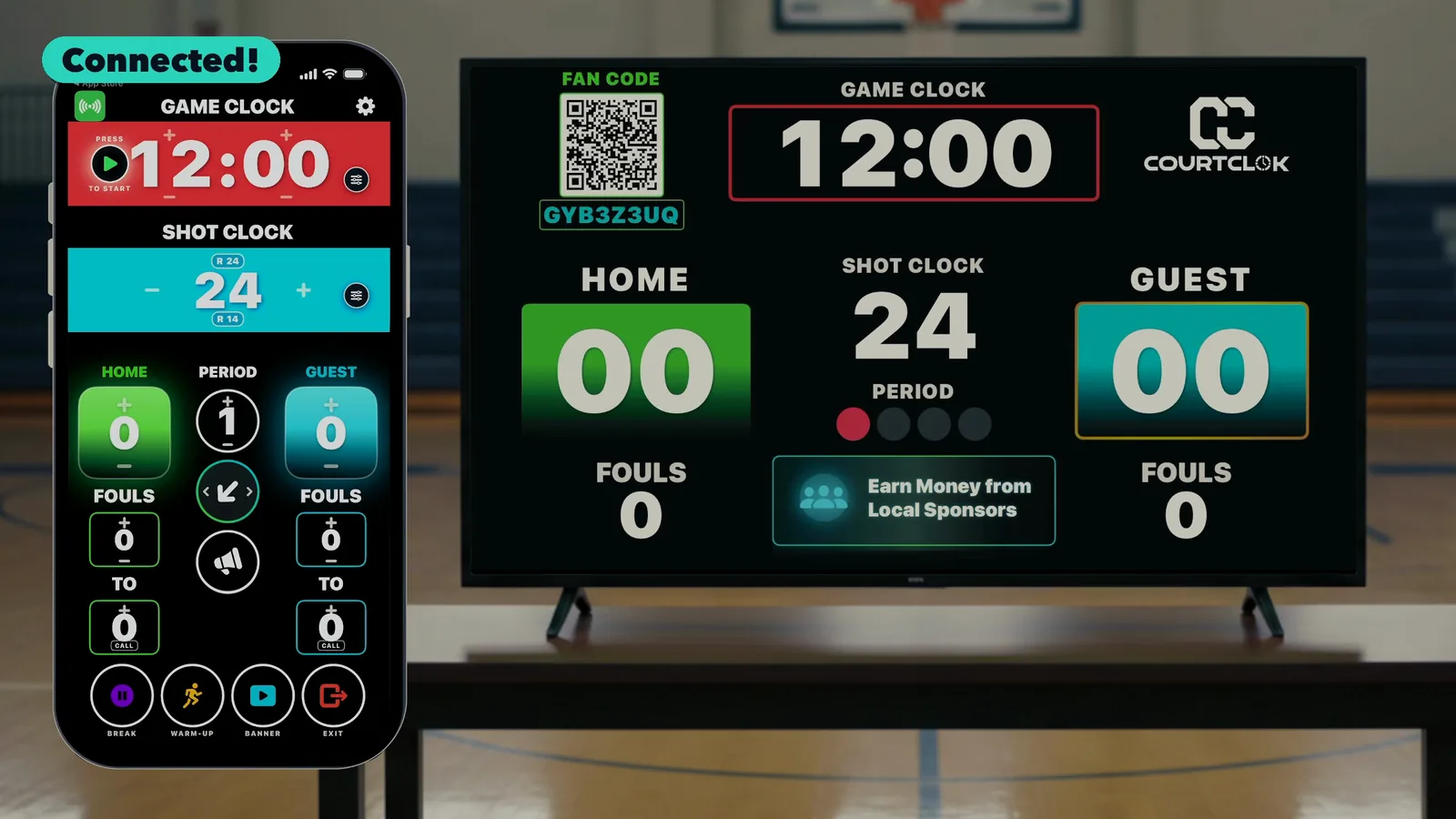
You should see: the controller shows BROADCASTING TO and your channel name, and the TV switches from "Waiting for broadcast…" to your scoreboard. Next time, the channel is already saved on both.
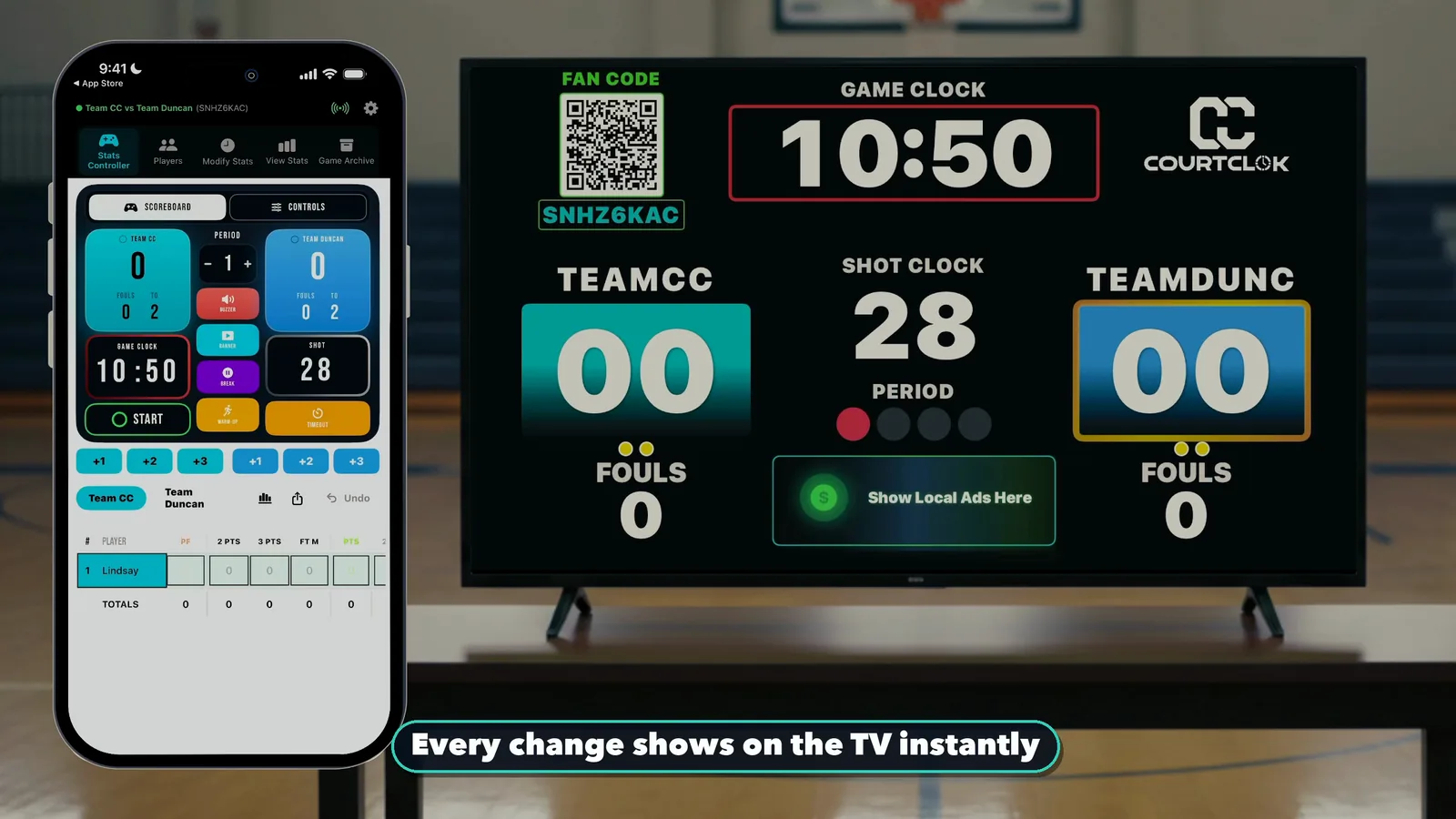
The TV shows exactly what the iPhone broadcasts
Everything runs over the internet, so the iPhone and the TV don't need to be on the same Wi-Fi. Each just needs a connection.
Everything that can follow your game
More TVs: every TV that enters your channel code subscribes to the same broadcast. Put one at each end of the gym.
A livestream device: a second iPhone or iPad filming the game can subscribe to your channel, so the stream shows the live score.
Fans in the stands: the QR in the corner of the scoreboard is the game's fan code. Parents scan it to follow the live score and player stats.
OBS: add courtclok.com/obs.html?code= plus your fan code as a browser source for a live score overlay.
TVs and livestream devices subscribe with the channel code. Fans and OBS use the game's fan code. Both get the same live updates.
Step 5: Run the game
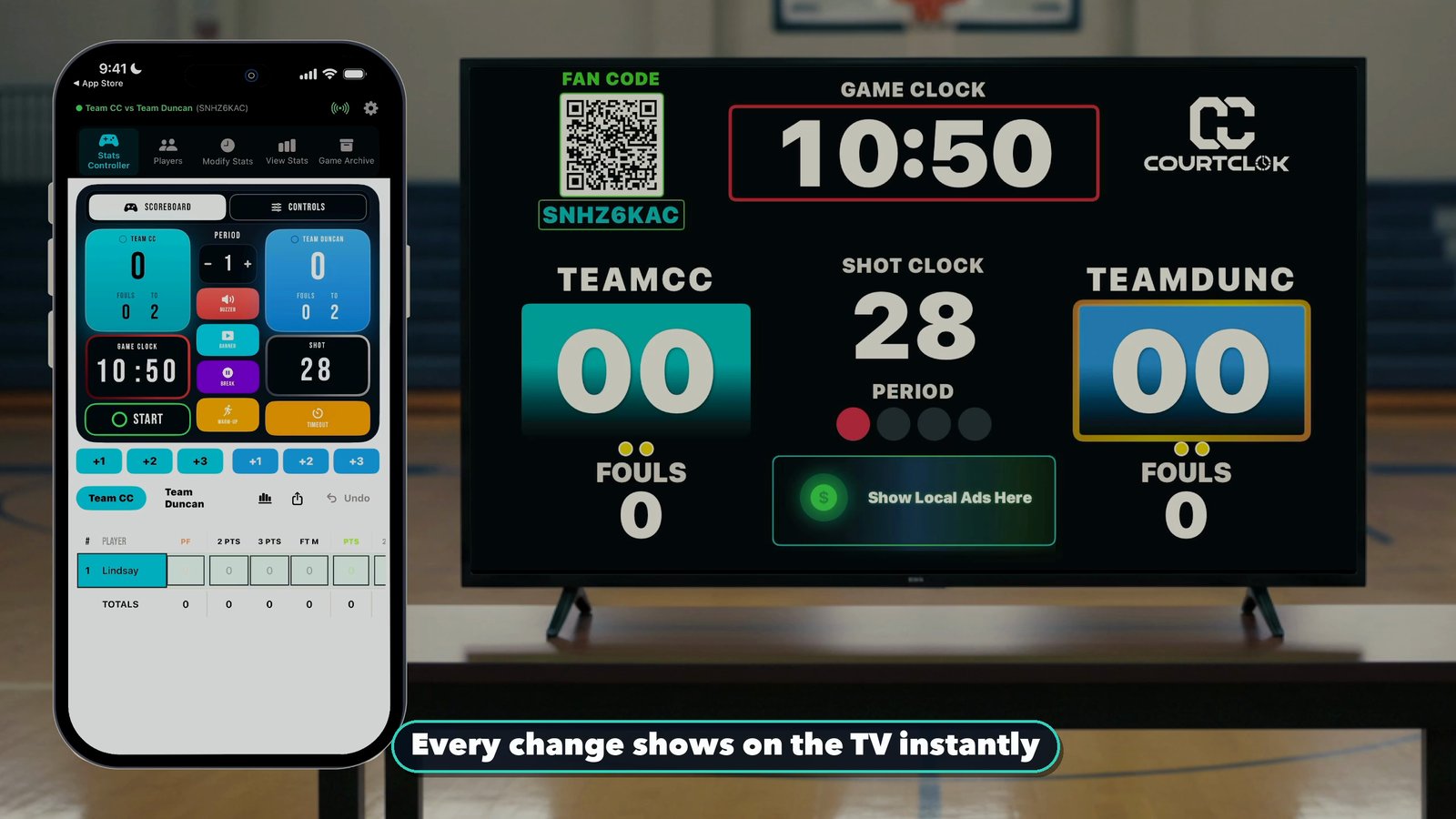
Everything you change on the iPhone shows on the TV instantly. Rule of thumb: tap the + to add and the − to take away, everywhere on the controller.
Numbered to match the table below
#
Control
How
1
Start / stop the clock
Tap play. Tap again to stop.
2, 3
Change the time
With the clock stopped, tap + above the minutes or seconds to add 1, − below to take 1 off.
4
Shot clock
Tap R 24 for a full reset, R 14 for a partial reset. Clock stopped: − / + on the sides change it by 1 second. Triple-tap to turn it off or on.
5, 7
Points
Tap + (top of the score) for +1, − (bottom) for −1. Press and hold to pick 1, 2 or 3 points.
6
Period
Tap + for the next period, − to go back.
8
Team fouls
Tap + to add a foul, − to remove one.
9
Timeouts
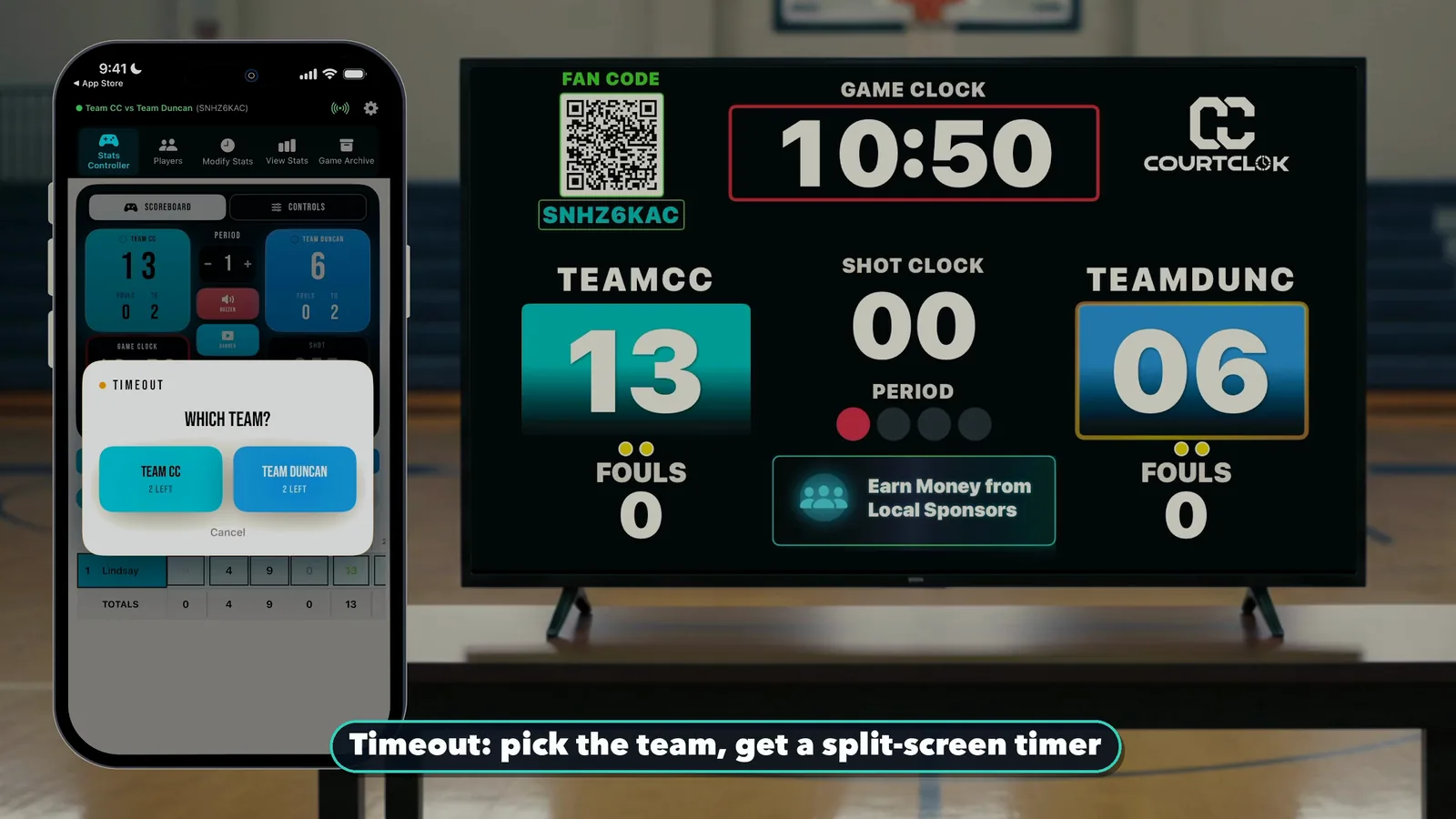
Tap CALL to call a timeout (the TV shows a countdown), + to give one back. Double-tap to set how many each team has.
10
Possession arrow
Tap the left side for Home, the right side for Guest.
11
Horn
Tap to sound the horn.
Every change on the phone shows on the TV straight away
Don't forget: keep the Apple TV awake
The extras that make it feel like a real scoreboard
Shot clock: choose a 14, 24, 30 or 35-second shot clock and set your own partial reset.
Timeouts: tap CALL under a team's timeouts and the TV switches to a split screen with a countdown.
Warm-up timer: a 5-minute warm-up clock you can adjust before tip-off.
Presets: switch sides, change quarter length and set team fouls per half or quarter.
Sponsor banners: got local sponsors? The Banner button puts their banner on the TV. No sponsors, nothing shows.
Timeouts get a split screen with a countdown
Game-day setup checklist
Do a test run the day before. Install the apps, create your broadcast channel and subscribe the TV once, so game day is just "enter code, connect".
Unlock the app right before warm-ups. After your first 5 free games, each ad unlock lasts three hours.
Check the Apple TV won't sleep: Screen Saver and Sleep After both set to Never.
Charge your phone, or keep a battery pack at the scorer's table.
Check the TV from the court. Players and refs should read it from both ends; turn up the volume so the horn carries.
Name channels by court ("Court 1", "Court 2") if you run more than one game at a time, or sign the TV in to your team account (Option B).
If something isn't working
Problem
Fix
The scoreboard disappears mid-game
The Apple TV's screen saver or sleep timer kicked in. Set both to Never (see Don't forget).
The TV says "Waiting for broadcast…"
The TV is subscribed, but your iPhone isn't broadcasting on that channel yet. Tap the red broadcast button and tap your channel.
The TV doesn't change when I score
Check the iPhone shows BROADCASTING TO your channel, and that the code under it matches the one on the TV.
The code won't connect
Retype it exactly as it appears under the channel name. If the channel has a PIN, enter it too.
+ / − on the clock does nothing
Stop the clock first. Time and shot-clock seconds only change while the clock is stopped.
I can't find CourtClok on my smart TV
You need an Apple TV HD or Apple TV 4K plugged in. Android TV and Fire TV Stick are coming soon.
It's asking me to watch an ad
Your 5 free games are used, or the 3-hour unlock ran out. Tap Watch 1 Ad & Continue Free, or try Pro free for 14 days.
Watch the setup video
Prefer to watch? Coach On walks through the whole setup on a real Apple TV and iPhone.
Full walkthrough on a real Apple TV: install, connect your iPhone, then run the clock, score, fouls and timeouts.
Shows the controller and the TV side by side, so you can see every change land on the scoreboard instantly.
Covers the shot clock, timeouts, warm-up timer, presets and voice scorekeeping.
Questions about the TV scoreboard
Is CourtClok free?
Yes. Your first 5 games are free. After that, one short ad unlocks the app for three hours, which covers a full game. CourtClok Pro removes ads, with a 14-day free trial, then $29.99 a month.
What do I need to turn my TV into a basketball scoreboard?
A TV with an Apple TV HD or Apple TV 4K plugged in, and an iPhone with CourtClok. The iPhone broadcasts a channel and the TV subscribes to it with the channel code. Android TV and Fire TV Stick support is coming soon.
Do the phone and TV need to be on the same Wi-Fi?
No. CourtClok works over the internet, so the iPhone and the TV each just need an internet connection.
Does it have a shot clock?
Yes. Choose a 14, 24, 30 or 35-second shot clock. Tap R 24 for a full reset and R 14 for a partial reset, and triple-tap the shot clock while the game clock is stopped to turn it on or off.
How do I add points?
Tap the + at the top of a team's score for one point, or press and hold the score to add 2 or 3 at once. Tap − to take a point off.
Can parents follow the game from their phones?
Yes. They scan the fan code QR on the TV scoreboard to follow the live score and player stats.
Can I put the score on my OBS stream?
Yes. Add courtclok.com/obs.html?code= followed by your game's fan code as a browser source in OBS.
Can I keep player stats at the same time?
Yes. CourtClok's Scoreboard + Stats mode credits each basket, rebound or turnover to a player, by tapping or by voice. We cover it in our next guide.
Ready for your next game? Download CourtClok free on iPhone and Apple TV, connect them once, and run the scoreboard from the bench.